New Countdown timers and interactive AMP emails are now in Postcards. Countdown timers → AMP for Email →
Gmail Promotions Tab

Show Your Offer Before the Email Is Opened

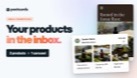
Add a product carousel, a discount code badge, a deal card or a large product image to the Gmail Promotions tab. Fill in a form in Postcards, and the annotation code is written into the HTML you export.

Add a Promotion
Watch How

Gmail Promotions Tab is included on every plan, the free Start plan too. See plans →

  • Product carousel
  • Discount code badge
  • Deal card
  • Single image preview
  • Copy to the next email
  • No code at any step

Four ways to stand out in the Promotions tab

Most of the Promotions tab is a list of sender names and subject lines. An annotation adds a picture, a price or a code to yours, so the offer is visible before anyone opens the email.

  • Product carousel

    A row of product cards, each with a photo, a name and a price, that people can scroll before they open the email. Add a discount and the sale price shows with the original struck through.

    Watch how (3:21)

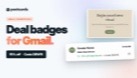
  • Discount code badge

    A small badge under the subject line with your offer in four words or fewer and the code to use it. Set when the deal starts and ends, and the badge carries the dates.

    Watch how (2:37)

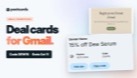
  • Deal card

    A summary of the promotion that Gmail generates from the offer page, a short description, the code and the end date. It can appear in the Promotions tab and inside the email itself.

    Watch how (2:08)

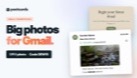
  • Single image preview

    One large product photo under the subject line, with a headline, the discount, the price and the code. Gmail takes a wide 1.91:1 image for this, so pick a photo that crops that way.

    Watch how (2:24)

  • Four promotion types, five short walkthroughs.

    Watch each annotation get set up for a real launch email, from the logo and subject line to the code and dates, then copied to the reminder that follows it.

  • Watch the Walkthroughs
Green Ball Blue Ball

Add a Gmail Promotions annotation in three steps

Annotations are structured data in the email’s HTML. Postcards writes it for you from a form, so there’s no markup to look up and no JSON to get wrong.

  • 1

    Switch on Gmail Promotions Tab

    Turn the setting on for the email and read the warning that comes with it. Then choose one of the four promotion types.

  • 2

    Fill in the offer

    Add the logo Gmail shows beside your name, the subject line, then the products, image, code and dates the type asks for. Preview the annotation as you go.

  • 3

    Export and send

    Export the HTML with the annotation code written in, and send it from your email platform. Running the same offer again? Copy the promotion and paste it into the next email.

What to know before you switch it on

Annotations are a request, not a guarantee. Gmail decides whether to show one, and a few of Google’s rules decide whether it can.

  • Gmail has the final say

    Gmail applies its own quality filters and frequency limits, so treat an annotation as something that can appear rather than something that will.

  • Send from a warmed-up domain

    Annotations only help when the email comes from a domain with an established sending reputation. From a new domain, Gmail may ignore them or treat the email as spam.

  • Put the code in the email too

    Google’s guidelines say to use a discount code in an annotation only if the email itself features it. Write the code into the offer copy before you add the badge.

  • Previews leave it out

    For the same reputation reason, Email Client Preview strips the annotation code before it generates its screenshots. Check the annotation in the promotion editor’s own preview instead.

See Email Client Preview →

Gmail Promotions Questions

  • What are Gmail Promotions tab annotations?

    Annotations are structured data in an email that let Gmail show more than a sender name and subject line in the Promotions tab: a product carousel, a discount code badge, a deal card or a large product image. People see the offer before they open the email.

  • How do I add an annotation to my email in Postcards?

    Switch on Gmail Promotions Tab for the email, choose one of the four promotion types, and fill in the fields it asks for, such as the logo, subject line, products, image, discount code and dates. When you export the HTML, the annotation code is written into it.

  • Will Gmail always show my annotation?

    No. Gmail decides whether to show an annotation and applies its own quality filters and frequency limits. Annotations work best from a domain with an established sending reputation; from a new or cold domain, Gmail may ignore them.

  • Does the discount code need to be in the email itself?

    Yes. Google's guidelines say to use a discount code in an annotation only if the email features it, so write the code into the offer copy before you add it to a badge, deal card or image preview.

  • What image size does the single image preview need?

    Gmail supports one ratio for the single image preview: a wide 1.91:1 image. Choose a product photo that still works cropped to that shape.

  • Can I reuse a promotion in another email?

    Yes. Use Copy Promotion in the promotion editor's three-dot menu, switch on Gmail Promotions Tab in the second email, and use Paste Promotion. Every field arrives, from the logo and subject line to the code, so you only change what differs.

  • Is Gmail Promotions Tab available on the free plan?

    Yes. Gmail Promotions Tab is included on every Postcards plan, including the free Start plan.

Your next sale, seen before it’s opened.

Pick a promotion type, fill in the offer, and export. The annotation travels inside the HTML.

Included on every plan, the free Start plan too. See plans →

Hey there 👋 Friends from designmodo are here to help!