How to Link an Email in HTML (mailto:) + Add Other Parameters
To link an email in HTML, use the mailto: protocol inside an anchor tag like this:
<a href=”mailto:[email protected]”>Email us</a>.
That simple line of code creates a clickable email link that opens the user’s default email app with your address prefilled. Instead of copying and pasting your email, visitors can click and start writing immediately.
In this guide, you’ll learn:
- The basic HTML syntax for an email link
- How to add a subject line and body text to customize that link
- How to include CC, BCC, and multiple recipients
- When a contact form might be the better choice
By the end, you’ll know exactly how to link email in HTML that works and how to make it more useful for both you and your users.
Why Do We Need to Add an Email Link in HTML
Because a mailto: link works well when you want immediate, low-friction communication without adding technical complexity to your website.
There’s no server-side processing, no database, and no form handling logic. It’s just a link that triggers the user’s default email client.
With Postcards Email Builder you can create and edit email templates online without any coding skills! Includes more than 100 components to help you create custom emails templates faster than ever before.
Free Email BuilderFree Email TemplatesThat makes it quite helpful for:
- Personal websites
- Small business pages
- Landing pages
- Portfolio sites
- Quick campaign pages
It’s also fast to implement. You can add it anywhere HTML is supported — in navigation, footers, buttons, or call-to-action sections.
Basic Syntax of Adding an Email Link in HTML
An email link in HTML uses the anchor (<a>) tag with the mailto: protocol inside the href attribute:
- The anchor tag is the HTML element used to create hyperlinks. It wraps the clickable text and tells the browser that this piece of content should behave like a link.
- The href attribute (short for hypertext reference) defines the link’s destination. In a standard link, that destination is a webpage URL.
- The mailto: protocol changes the destination type. Instead of pointing to a webpage, it tells the browser the link should open an email client and prepare a new message.
Here’s the basic syntax you have to follow:
<a href=”mailto:[email protected]”>Email us</a>
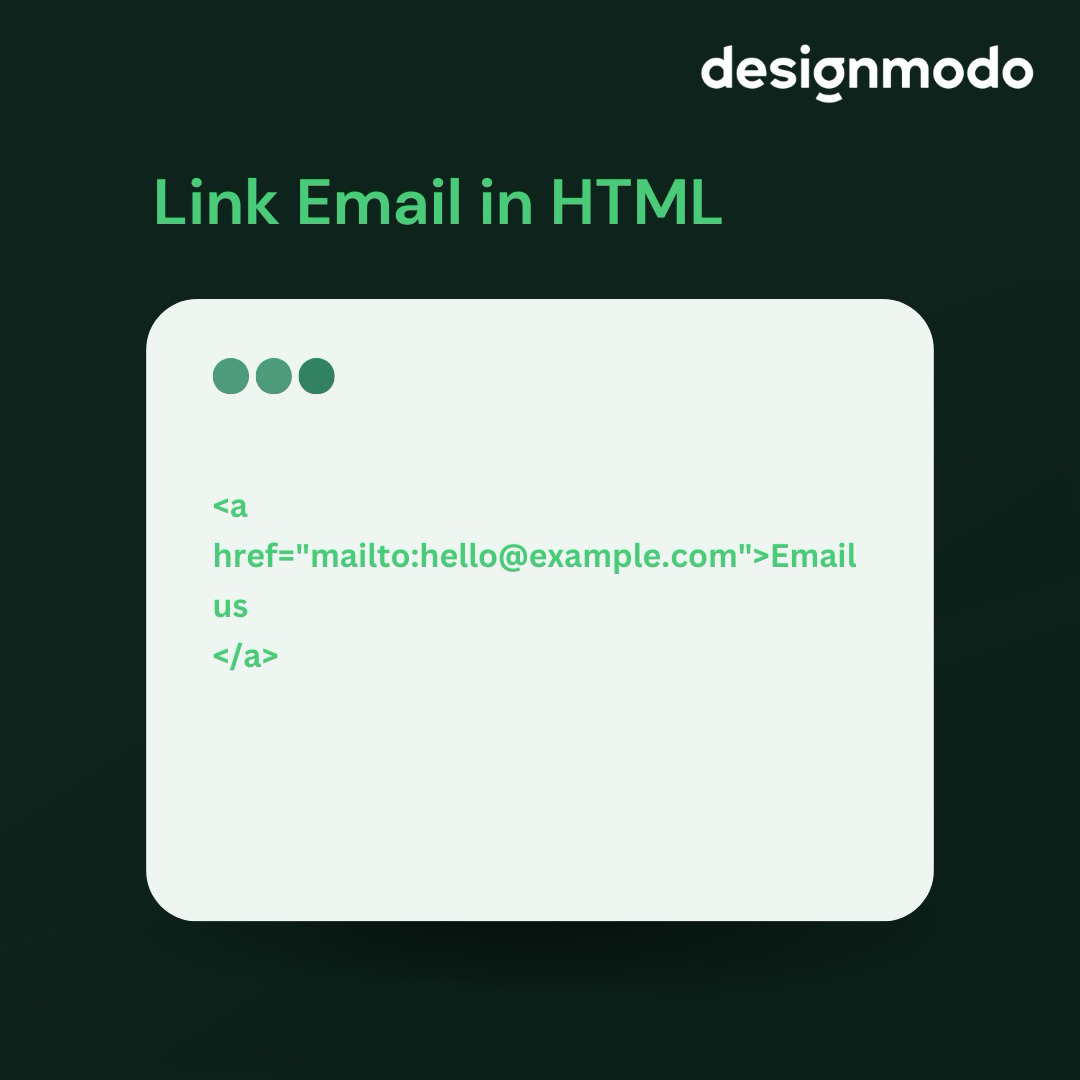
Let’s look at each part of this syntax:
- <a> creates the link.
- href defines the destination.
- mailto: signals that the destination is an email address.
- [email protected] is the recipient.
- Email us is the visible link text.
That’s the minimum required to create a working email link.
How to Send to Multiple Recipients
You can also include more than one address by separating them with a comma:
With Pulsetic you’ll be instantly notified the moment your website, API, or server becomes unavailable. Monitor uptime from multiple global locations and respond to incidents before your users are affected.
Create beautiful status pages in minutes to keep customers informed during outages and build trust with transparent communication.
Start Monitoring for Free<a href=”mailto:[email protected],[email protected]”>Email both teams</a>
This way, both addresses will appear in the “To” field when the link is clicked.
How to Add Other Parameters to Your Mailto Link
So far, the link only fills the “To” field. You can also prefill the subject line, message body, CC, and BCC. To do that, you add parameters directly after the email address.
There’s one rule to remember:
- Use ? before the first parameter.
- Use & for every parameter after that.
Once you understand that structure, the rest is predictable.
1. Add Subject Line to Your Mailto Link
To automatically fill the subject line, use the subject= parameter. Because this is the first parameter, it follows a ?.
<a href=”mailto:[email protected]?subject=Marketing%20Inquiry”>
Email us
</a>
Here’s what’s happening:
- ? separates the email address from the first parameter.
- subject= defines the subject field.
- %20 represents a space between words.
When the link is clicked, the email opens with “Marketing Inquiry” already in the subject line.
2. Add a Message Body to Your Mailto Link
To prefill the message content, use the body= parameter. Since this comes after subject=, it uses & instead of ?:
<a href=”mailto:[email protected]?subject=Marketing%20Inquiry&body=Hi,%0D%0A%0D%0AI%20would%20like%20more%20information.”>
Email us
</a>
If you want line breaks, use %0D%0A.
That code produces a message like this:
Hi,
I would like more information.
The user can review it, edit it, or send it as-is.
3. Add CC and BCC to Your Mailto Link
To include additional recipients automatically, use:
cc= for carbon copy
bcc= for blind carbon copy
For example:
<a href=”mailto:[email protected]?subject=Hello&[email protected]&[email protected]”>
Email us
</a>
When the link opens, those addresses appear in their respective fields.
4. Open the Mailto Link in a New Tab
You can also control how the link behaves in the browser.
To open it in a new tab, add:
- target=”_blank”
- rel=”noopener noreferrer”
Like this:
<a href=”mailto:[email protected]” target=”_blank” rel=”noopener noreferrer”>
Email us
</a>
Here’s how it works.
- If the user’s default email is a desktop app like Outlook or Apple Mail, the behavior stays the same.
- If their default email is web-based — such as Gmail in the browser — the link opens in a new tab instead of replacing the current page.
Is There an Alternative to Mailto Links?
Yes, a contact form is the main alternative. Instead of adding mailto links, you can create a contact form that lets users send you a message directly through your website.
This means users stay on your website and fill out a form rather than open Outlook, Apple Mail, or Gmail.
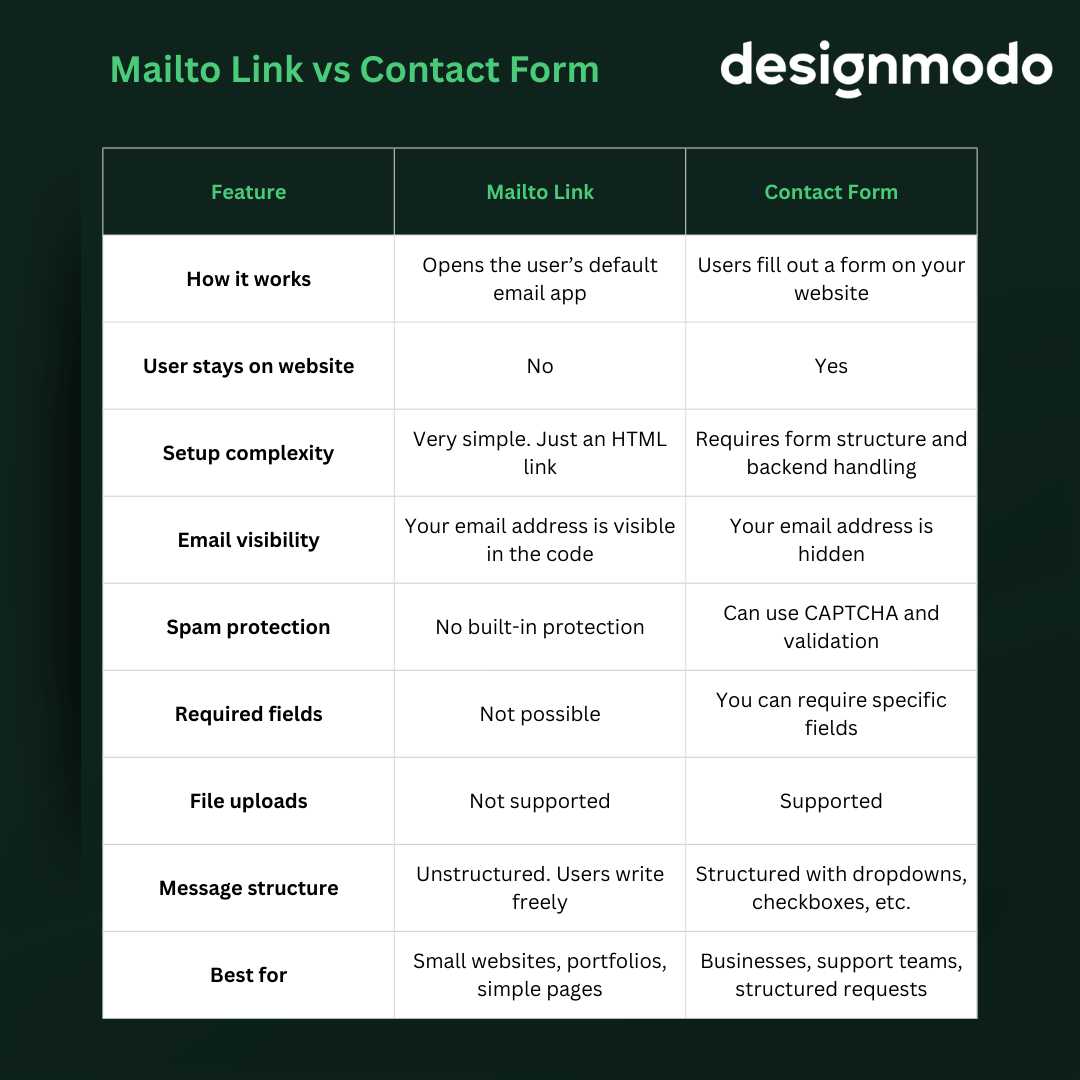
With a contact form:
- Your email address is not publicly visible
- Bots can’t easily scrape your address from the page
- You can require specific information before submission
- You can use dropdowns, checkboxes, or file uploads
- You can structure messages before they reach your inbox
For example, you can ask users to:
- Select a department (Sales, Support, Billing)
- Enter an order number
- Choose a topic
- Upload a file
Now the message arrives organized instead of vague. So, that structure reduces back-and-forth and speeds up response time.
But forms aren’t always better.
Some users prefer direct email because it feels familiar and allows ongoing conversation. They can even save a copy of what they sent.
But forms can create friction if you require too many fields.
And while bots can’t scrape your email address from a form, they can still submit spam through form fields. That’s why it’s important to keep forms simple and use spam protection such as reCAPTCHA.
Which should you choose?
- Use a mailto: link for fast communication.
- Use a contact form for more data control.
The right choice depends on how much control you need and how much friction your audience will tolerate.
Postcards Make Email Building Easier
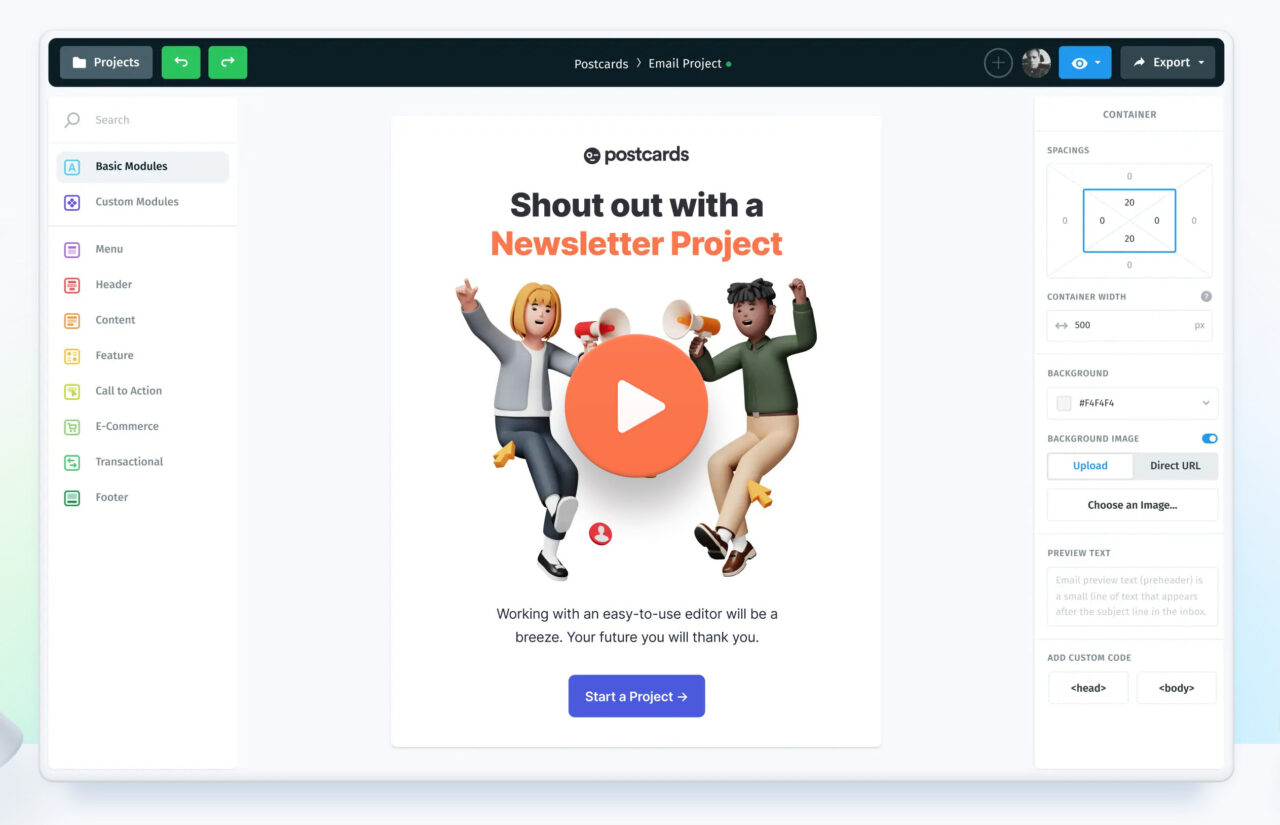
If you’re manually writing HTML to add mailto links, subject lines, and message parameters, it works, but it can take time. You also have to be careful with almost everything — syntax, coding, and formatting.
But Postcards, Designmodo’s email builder software, can make things easier.
Postcards is a drag-and-drop email builder that lets you create professional emails without dealing with complex code. Instead of building everything from scratch, you can start with our ready-made email templates and customize them depending on your needs.
If you want to add a clickable email link inside your template, you can simply drag a button or text block and drop it where you want in just a few clicks.
So while it’s important to understand how mailto links work in HTML, using a tool like Postcards can simplify the email creation process and help you focus more on your message instead of your code.
FAQs
How Do You Create A Clickable Email Link In HTML?
Use the anchor tag with the mailto: protocol. For example: <a href=”mailto:[email protected]”>Email us</a>
Replace the email address and link text with your own. The link opens the user’s default email client.
What Does <p> Mean in HTML?
The <p> tag defines a paragraph. Browsers use it to separate blocks of text and add spacing between them. It helps structure content and improve readability.
How Do I Copy A Link And Make It Clickable?
Wrap the URL inside an anchor tag like this: <a href=”https://example.com”>Visit our website</a>
The href attribute holds the destination URL. The text between the tags becomes the clickable link.