What Is Gmail Deliverability in the Age of AI?
Gmail deliverability is the likelihood that an email sent to a Gmail address lands in the primary inbox instead of the spam folder or another tab.
When you send an email campaign, Gmail doesn’t automatically place it in the inbox; it goes through a series of steps before reaching the inbox.
In this guide, we’ll cover how Gmail deliverability works in the age of AI, email deliverability rules for Google, and simple best practices to help your emails reach the inbox.
TL;DR:
- Gmail deliverability decides if your emails go to the inbox, Promotions tab, or spam.
- Gmail checks things like email authentication, sender reputation, and how people interact with your emails.
- Bulk senders must add an easy unsubscribe link and follow SPF, DKIM, and DMARC rules to keep spam complaints low.
- Clean email list, a consistent sending schedule, easy-to-skim design, and value-driven content improve inbox placement.
What Is Gmail Deliverability?
Gmail deliverability describes how reliably your emails reach Gmail users and where those messages appear after Gmail processes them.
When an email is sent to a Gmail address, Gmail evaluates the message and decides whether it should appear in the primary inbox, the Promotions tab, another category tab, or the spam folder.
With Postcards Email Builder you can create and edit email templates online without any coding skills! Includes more than 100 components to help you create custom emails templates faster than ever before.
Free Email BuilderFree Email TemplatesThis process creates an important distinction in email marketing: delivery vs inbox placement.
- Delivery means Gmail accepted the email and did not reject it.
- Inbox placement refers to where the email appears after Gmail filters it.
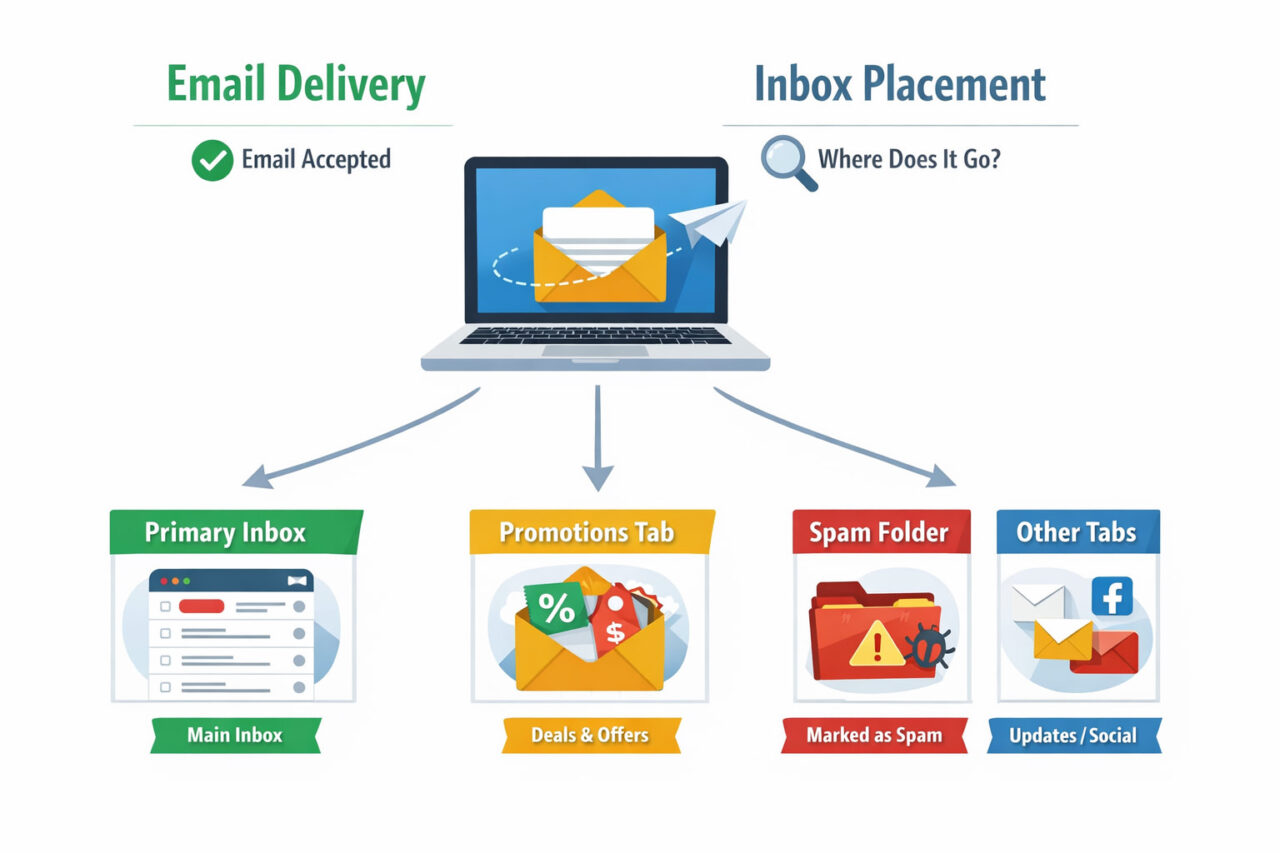
An email can be successfully delivered but still end up in spam or a secondary tab. Gmail deliverability focuses on improving the chances that messages appear where recipients are most likely to see them.
How Gmail’s Gemini AI Is Changing Deliverability
Gmail is gradually integrating Gemini AI into the email experience. Features such as AI summaries, smarter search, and inbox assistance help users process messages faster and surface the most relevant emails.
This changes how deliverability should be understood.
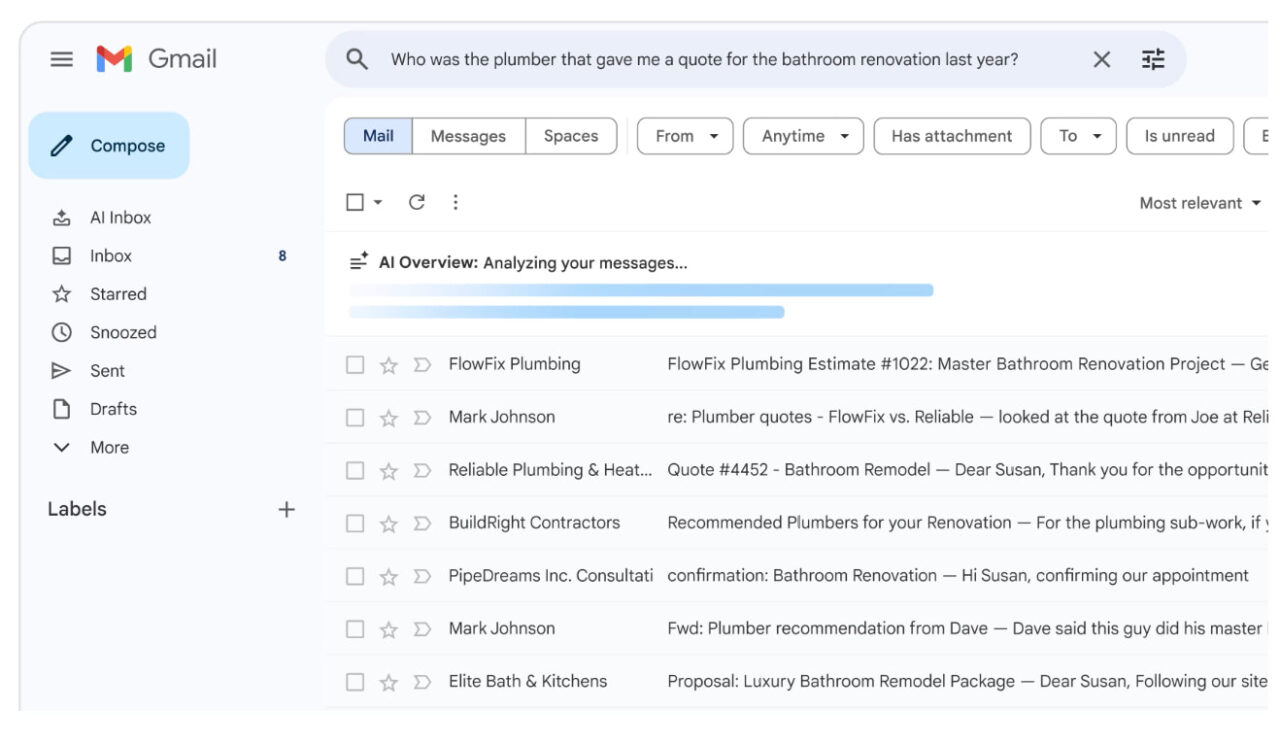
In the past, the primary goal was to bypass spam filters and reach the inbox. Today, inbox visibility also depends on whether Gmail’s AI considers the message useful for the recipient.
Because these systems interpret email context and engagement patterns, message quality matters more. Emails that match subscriber expectations and generate opens, replies, or clicks are more likely to maintain strong inbox visibility.
Gemini’s ability to summarize conversations also increases the importance of clear subject lines and structured content. When emails are easy to scan and communicate value quickly, both readers and AI systems can interpret them more effectively.
Why Gmail Deliverability Matters in the AI-Driven Era
More than 1.8 billion people use Gmail worldwide, which means a significant portion of most email lists contain Gmail addresses. If emails land in spam or less-visible tabs, many recipients never see them. As a result, your campaign results may drop even when the message itself is strong.
With Pulsetic you’ll be instantly notified the moment your website, API, or server becomes unavailable. Monitor uptime from multiple global locations and respond to incidents before your users are affected.
Create beautiful status pages in minutes to keep customers informed during outages and build trust with transparent communication.
Start Monitoring for FreeHow Gmail Spam Filters Work
Gmail uses machine learning systems to decide where incoming emails should appear. These systems analyze signals tied to the sender, the message, and how recipients interact with similar emails.
Instead of evaluating a single email in isolation, Gmail looks at patterns over time. Sending behavior across multiple campaigns helps Gmail determine whether a sender consistently sends messages people want to receive.
Based on these signals, Gmail places messages in different locations within the mailbox. Emails may appear in the Primary inbox, the Promotions tab, or the spam folder, depending on how trustworthy the sender appears.
Key Signals Gmail Uses to Evaluate Senders
To decide how trustworthy a sender is, Gmail evaluates the following engagement and reputation signals:
1. Positive engagement signals indicate that recipients value the email. These signals strengthen the sender’s reputation and improve inbox placement. Some common positive signals include:
- Opening emails
- Clicking links
- Replying or forwarding messages
- Moving an email from spam to the inbox
2. Negative signals suggest that recipients do not want the messages. These signals weaken the sender’s reputation and increase the likelihood of spam filtering. Some common negative signals are:
- Spam complaints
- Unsubscribes
- Deleting emails without opening them
- Hard bounces
Gmail aggregates these signals across campaigns to build a long-term reputation profile for the sender.
Gmail Deliverability Rules for Bulk Senders
Google introduced stricter sender requirements for high-volume email in February 2024. These rules apply to senders who deliver 5,000 or more emails per day to Gmail users.
If your campaigns reach this scale, follow the specific standards related to authentication, spam complaints, and unsubscribe options:
Authentication Requirements (SPF, DKIM, DMARC)
Email authentication verifies that an email actually comes from the domain it claims to represent. Gmail requires bulk senders to authenticate messages using SPF, DKIM, and DMARC:
1. SPF (Sender Policy Framework) allows a domain to specify which servers are authorized to send emails on its behalf. This information is stored in the domain’s DNS as an SPF record. When Gmail receives a message, it checks this record to confirm the sending server is permitted.
2. DKIM (DomainKeys Identified Mail) adds a cryptographic signature to each email. Gmail uses this signature to verify that the message was sent from the claimed domain and was not altered during delivery.
3. DMARC (Domain-based Message Authentication, Reporting, and Conformance) works alongside SPF and DKIM. It allows domain owners to define how receiving servers should handle messages that fail authentication. Depending on the policy, suspicious messages may be monitored, quarantined, or rejected.
Spam Complaint Rate Limits
Spam complaint rate defines how often recipients mark emails as spam. According to Google, your spam rate should be under 0.3% to maintain a healthy sender reputation.
When complaint rates increase, Gmail’s filters become more aggressive. Emails are more likely to land in spam, and repeated violations can damage the sender’s domain reputation. In severe cases, they may temporarily block emails from that sender.
So if you’re a bulk sender, regularly monitor complaint rates.
Tip: Google Postmaster Tools provides insights into spam complaints, domain reputation, and Gmail delivery performance.
Easy Unsubscribe Requirement
Gmail expects bulk senders to make unsubscribing simple. If recipients cannot easily stop emails, they often choose the next easiest option — marking the message as spam. Those complaints damage the sender’s reputation and hurt deliverability.
When you provide a clear unsubscribe link, recipients can leave your list without frustration. That reduces spam complaints and protects your sender reputation.
Gmail Specific Optimization Tips
If you’re optimizing email campaigns for Gmail users, focus on a few platform-specific practices:
- Check your domain reputation regularly using Google Postmaster Tools so you can detect spam complaints or reputation drops before Gmail filters your emails to spam.
- Write subject lines and structure your message so it stands out in the Gmail Promotions tab, where most marketing emails appear.
- Keep your email size below Gmail’s 102 KB clipping limit so the entire message, including calls to action and tracking pixels, remains visible to recipients.
- Send campaigns first to subscribers who recently opened or clicked your emails so Gmail sees positive engagement signals that strengthen your sender reputation.
- Maintain consistent sending volume and schedules instead of suddenly increasing campaign size, because large spikes in sending behavior can trigger Gmail’s spam filters.
- Keep your email list clean by regularly removing inactive subscribers who never open your emails, since repeatedly sending to unengaged users weakens sender reputation and increases the risk of spam filtering.
Common Gmail Deliverability Mistakes
Some sending practices may quickly hurt email deliverability. So, let’s explore a few common mistakes and how to fix them:
Using Purchased Email Lists
Purchased email lists often lead to spam complaints because recipients never requested those emails. Many addresses on these lists are also outdated or inactive, which can increase bounce rates and further damage the sender’s reputation.
How to fix it: Build email lists using clear opt-in forms and confirmed subscriptions. Send campaigns only to people who explicitly agreed to receive your emails.
Sending Emails Without Authentication
Emails sent from domains that lack proper authentication fail Gmail trust checks. Without SPF, DKIM, and DMARC, Gmail cannot verify that the message genuinely comes from the sending domain.
How to fix it: Configure SPF, DKIM, and DMARC records for your domain. These authentication methods confirm your sender identity and help Gmail trust your emails.
Sudden Spikes in Sending Volume
Large and unexpected increases in email volume can trigger Gmail spam filters because sudden spikes often resemble spam campaigns.
How to fix it: Maintain consistent sending patterns and gradually increase campaign volume when scaling email programs. This way, Gmail can recognize your normal sending behavior.
Ignoring Engagement Signals
Low engagement sends negative signals to Gmail. When recipients frequently ignore, delete, or mark emails as spam, Gmail may start routing your future campaigns to the spam folder.
How to fix it: Monitor engagement metrics such as opens, clicks, replies, and spam complaints. Remove inactive subscribers and focus campaigns on users who regularly interact with your emails.
Some email services use shared IP addresses or domains. If another sender on that infrastructure generates spam complaints, Gmail may associate those signals with everyone using the same resources.
How to fix it: Choose reputable email service providers and monitor domain reputation. If you’re a high-volume sender, you can even use dedicated sending domains or IP addresses.
Using Misleading Subject Lines
Subject lines that exaggerate or misrepresent the email content reduce trust. Tactics such as adding “Re:” or “Fwd:” to unrelated marketing emails can appear deceptive.
How to fix it: Write subject lines that accurately describe the email content and set clear expectations for recipients.
Why Email Content and Design Matter in the Age of AI
When recipients ignore messages, delete them without opening, or mark them as spam, Gmail receives the opposite signal. Over time, that low engagement can reduce inbox placement even if authentication and technical setup are correct.
Because of this shift, email design and content now directly affect deliverability.
Content Quality Influences Engagement Signals
Emails that match subscriber expectations are more likely to generate engagement signals that Gmail’s AI systems interpret as positive.
Email Design Affects How Users Interact With Messages
Poor formatting, heavy images, or difficult layouts can reduce readability and discourage interaction. On the contrary, well-structured designs make it easier for subscribers to scan and respond to emails.
So make sure your email design includes:
- mobile-friendly layouts
- simple formatting and clear content sections
- a balanced mix of text and images
- fast-loading visuals
- visible calls to action
These design choices improve the overall user experience. As a result, when recipients interact with emails more often, Gmail’s filtering systems receive stronger engagement signals, which support better inbox placement.
If building this kind of layout from scratch feels complicated, don’t worry — you can use Designmodo’s ready-made free email templates. You can even customize them with Postcards, the drag-and-drop email builder, however you like.
Use This Gmail Deliverability Checklist
- Use this checklist as a quick reference to plan or review your email campaigns:
- Authenticate your sending domain with SPF, DKIM, and DMARC.
- Monitor Gmail spam complaint rates and keep them below recommended thresholds.
- Warm up new sending domains gradually before launching large campaigns.
- Maintain a clean email list by removing inactive or unengaged subscribers.
- Write clear and honest subject lines that accurately reflect the email content.
- Design emails for readability and engagement with mobile-friendly layouts and clear calls to action.
- Track sender reputation using Google Postmaster Tools.
- Maintain consistent sending volume and avoid sudden spikes in campaign size.
FAQs
Can I Send 1,000 Emails In Gmail?
Yes, but Gmail has sending limits. A standard Gmail account can send up to 500 emails per day, while Google Workspace accounts can send up to 2,000 emails per day. If you need to send large campaigns regularly, it is better to use a dedicated email marketing platform to avoid hitting Gmail limits or affecting deliverability.
What Is Looping In Email?
Looping in email means adding someone to an existing email conversation so they stay informed or can contribute to the discussion. This is usually done by adding the person to the CC or To field when replying to an email thread.
What Is A Mail Delivery Agent?
A Mail Delivery Agent (MDA) is the software responsible for delivering incoming emails to a user’s mailbox. After an email server receives a message, the MDA processes it and places it into the correct inbox folder so the recipient can access it.