How to Send a Newsletter in Gmail [Different Methods & Templates]
Gmail is perfect for everyday emails, but when it comes to designing professional, eye-catching newsletters, its tools feel limited.
You may worry about formatting breaking, images not showing correctly, or your email ending up in spam. But it’s okay because we’ve all been there.
Luckily, there are four hassle-free ways to create and send newsletters in Gmail that look polished and work well, such as:
- Designmodo Gmail plugin
- Gmail’s built-in layouts for simple messages
- Google Docs templates for more structured content
- Postcards app
In this guide, I’ll show you how to send a newsletter in Gmail using all these methods.
1. Create a Mailing Distribution List in Gmail
To send newsletters, you must have a contact list to send to. And the easiest way to create this mailing list is using Google Contacts. This lets you group subscribers and send your newsletter to everyone at once.
Here’s how to set it up:
With Postcards Email Builder you can create and edit email templates online without any coding skills! Includes more than 100 components to help you create custom emails templates faster than ever before.
Free Email BuilderFree Email Templates1. Open Google Contacts.
2. Click Create contact and choose between:
a) Create a contact (if you want to add a single contact)
b) Create multiple contacts (best for bulk)
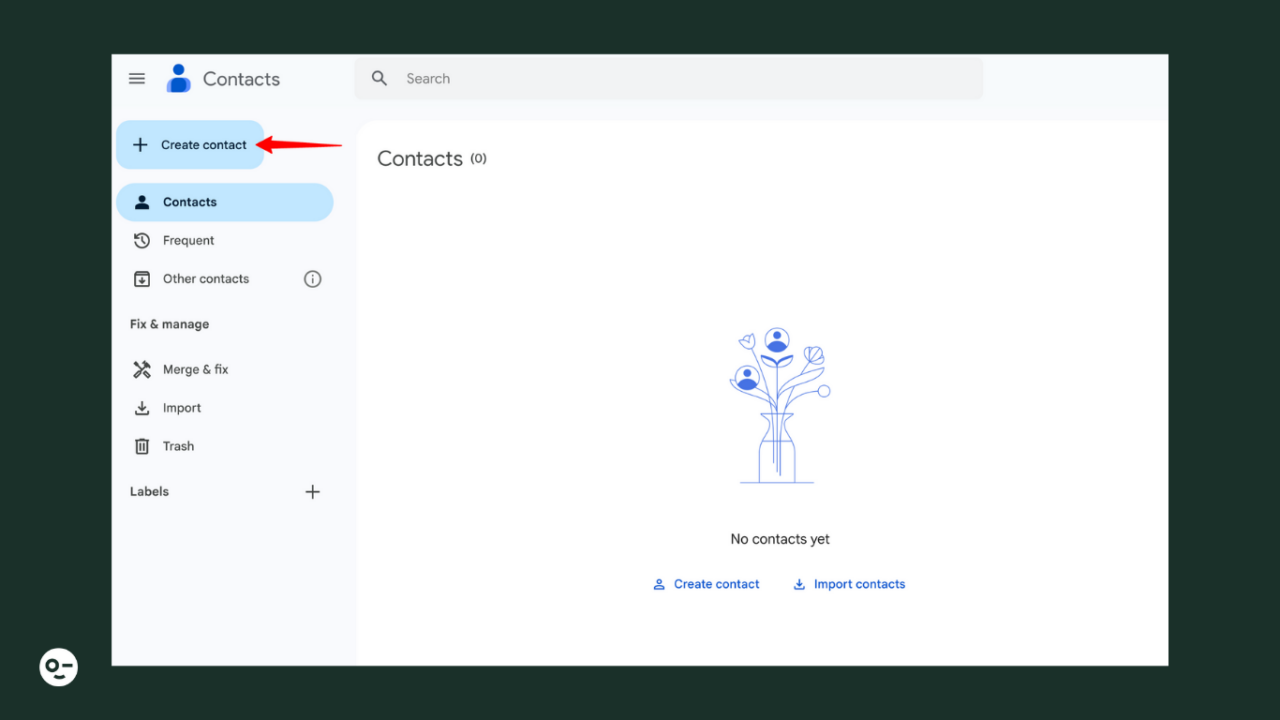
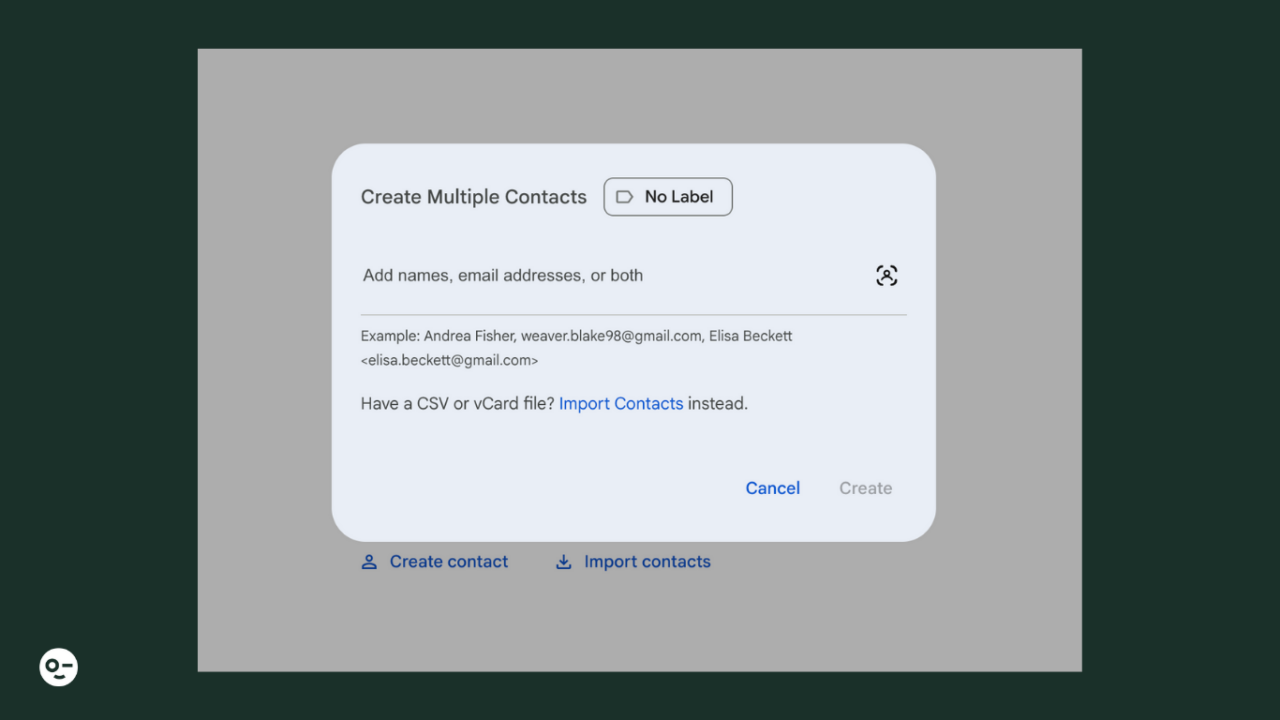
3. Go with “Option B” in this case. You’ll see a Create Multiple Contacts window pop up.
4. Add each subscriber’s name and email address. You can also import contacts in bulk using a CSV file if you already have a list.
5. For bulk, click the Import Contacts option.
Note: Google has a template for importing contacts. You can use that to build your list, then upload it here.
With Pulsetic you’ll be instantly notified the moment your website, API, or server becomes unavailable. Monitor uptime from multiple global locations and respond to incidents before your users are affected.
Create beautiful status pages in minutes to keep customers informed during outages and build trust with transparent communication.
Start Monitoring for Free6. Select the CSV file of your contact list and upload it.
7. Click the Import button to complete the process.
8. After the import, add a label to name your list.
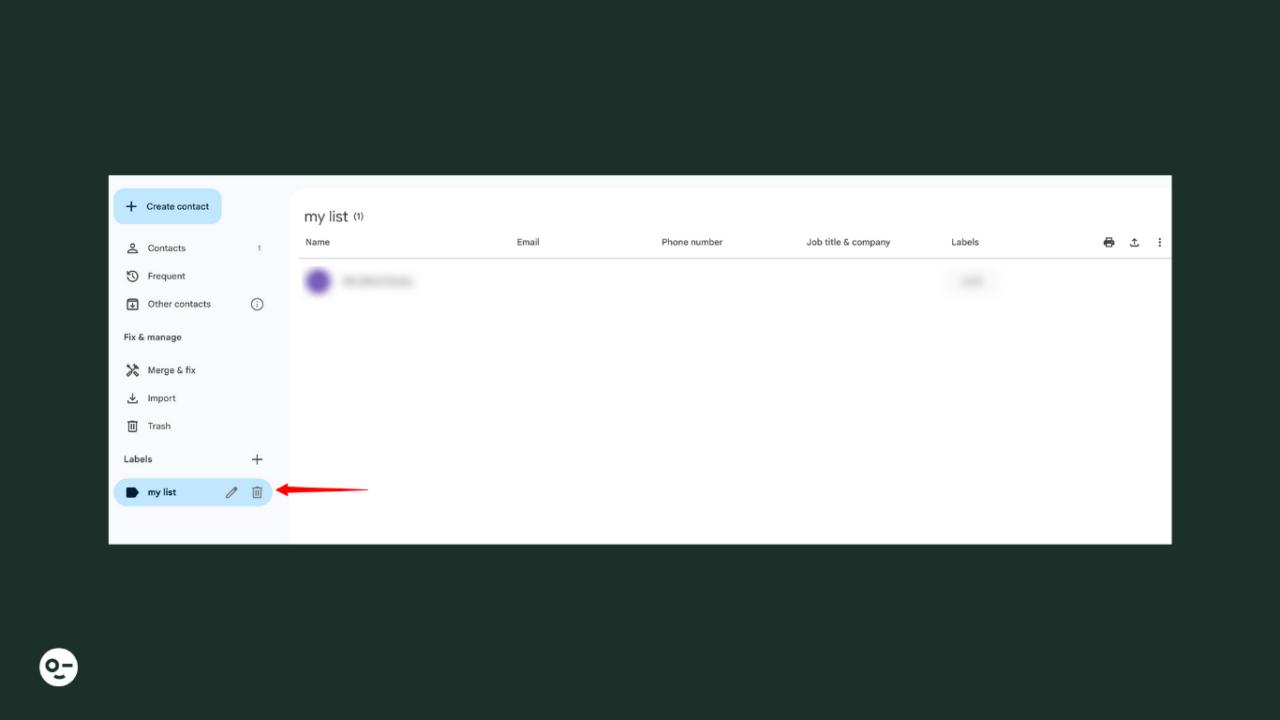
Now, when you’re ready to send the newsletter:
- Open Gmail and click Compose.
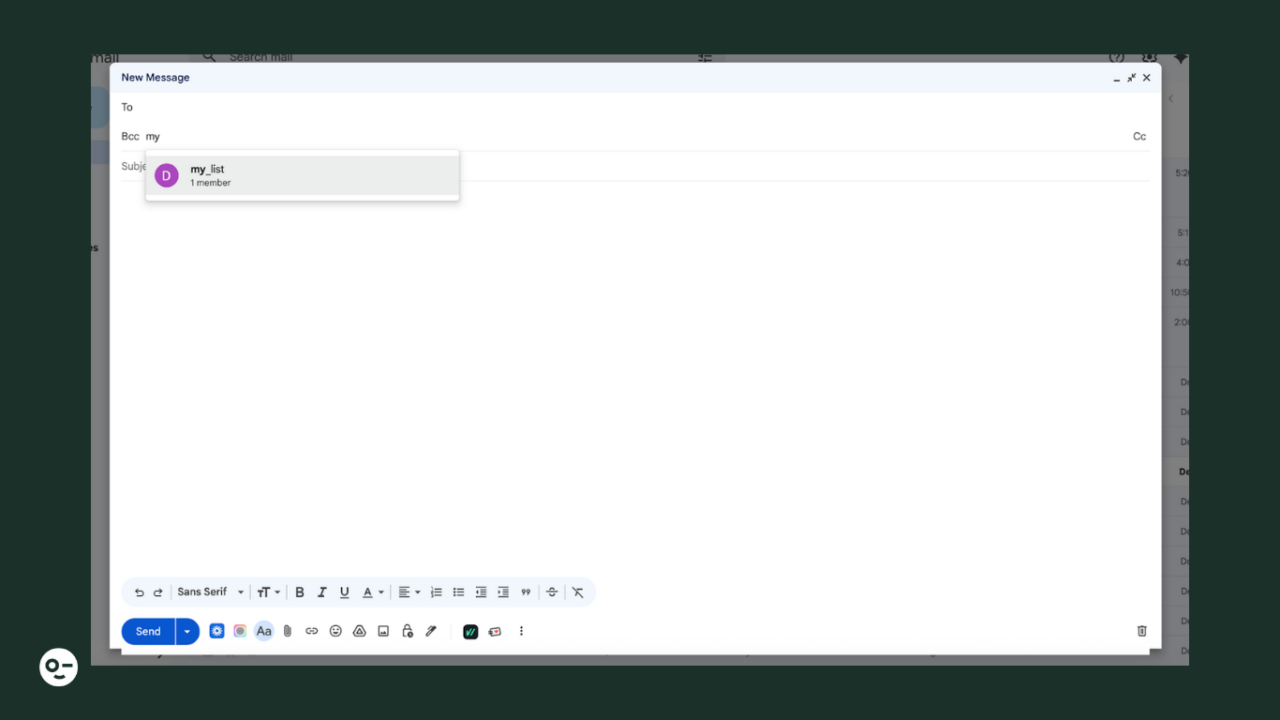
- In the To field, select Bcc
- Type and enter the name of your label.
- Gmail will automatically include everyone in that group.
If you’re sending a newsletter to many people, use Mail Merge. This looks more professional and reduces the risk of deliverability issues.
Now that your email list is ready, let’s see how to create an email newsletter in Gmail and send it:
Method 1: Use Designmodo’s Gmail Plug-in
If you want to send a polished newsletter through Gmail without dealing with code, broken formatting, or layout limitations, the Email templates for Gmail by the Designmodo plug-in is the easiest option.
Why? Because you can choose a ready-made newsletter template, customize it visually, and send it using your account. This way, everything happens in one workflow, from design to delivery.
Here’s how to use this:
1. Install the Designmodo email templates plugin.
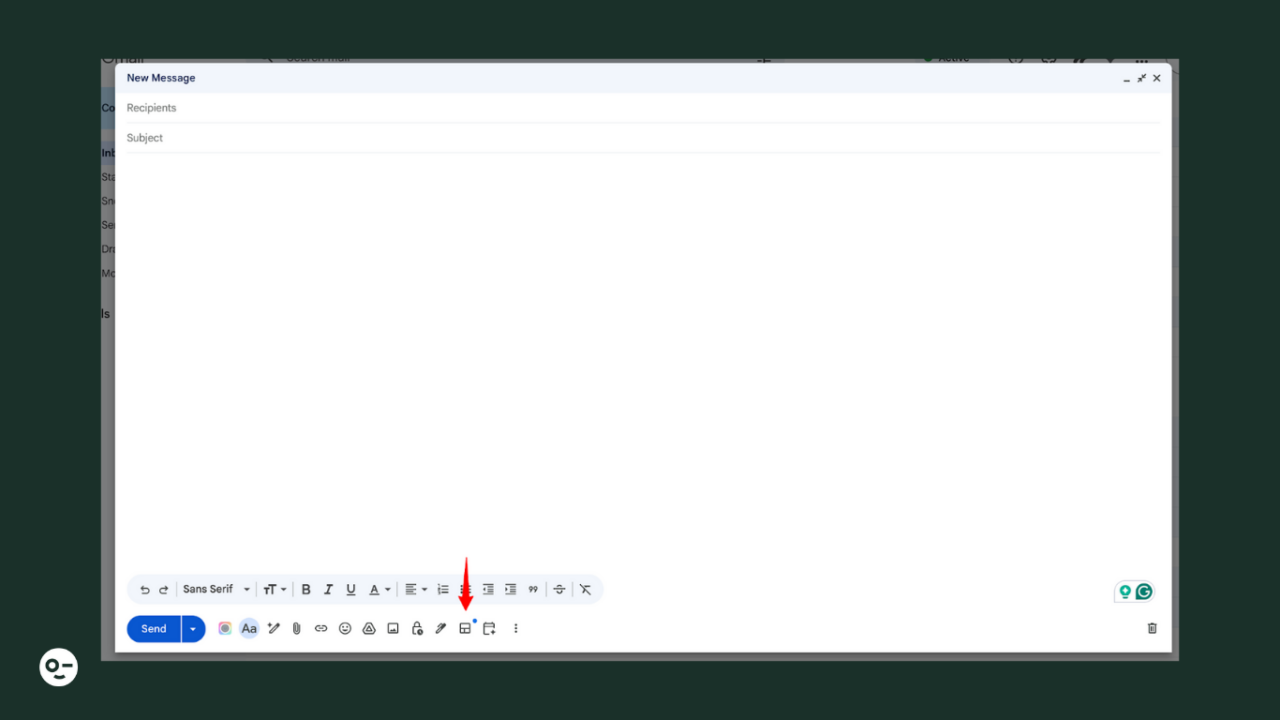
2. Open Gmail and click Compose.
3. At the bottom of the message window, click the Postcards button.
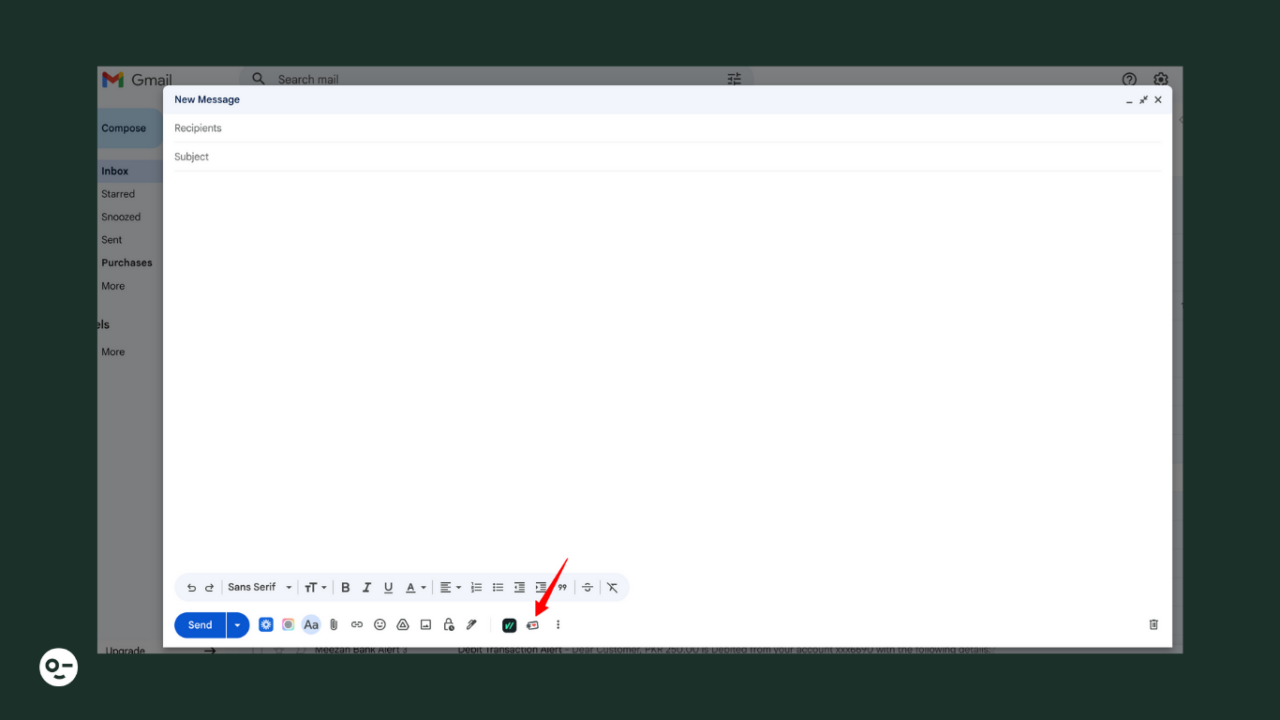
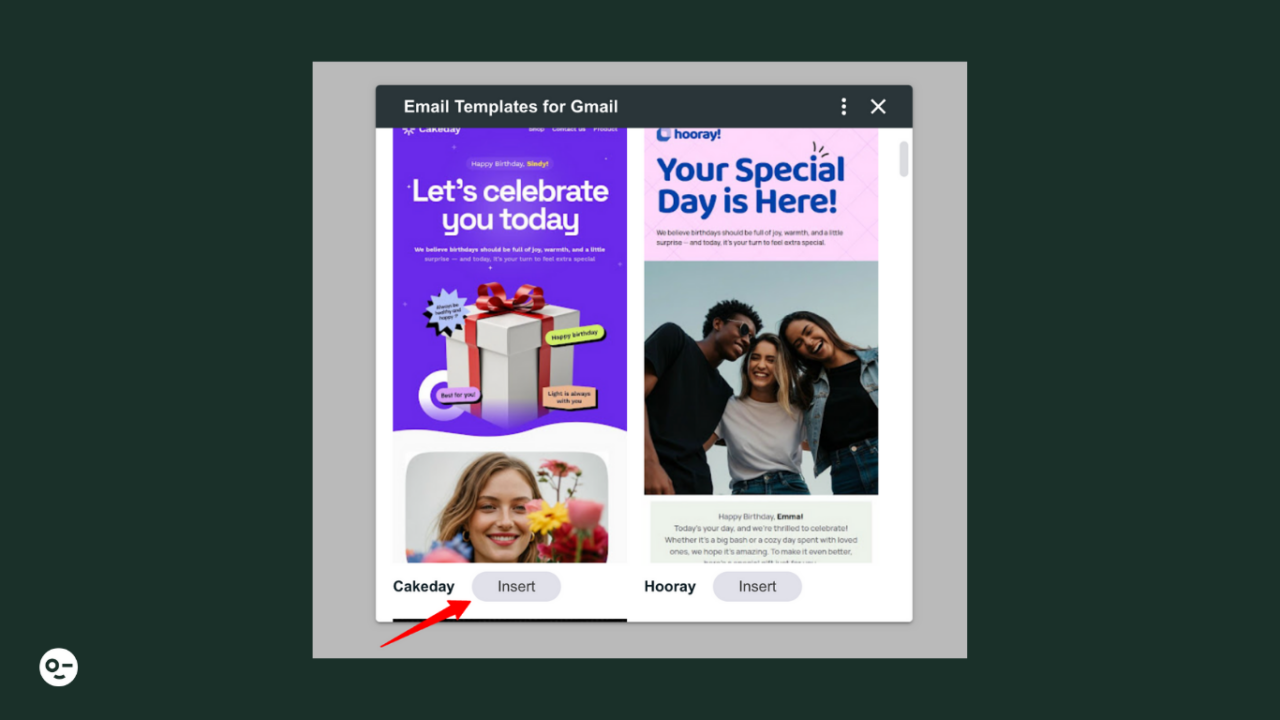
4. An Email Templates for Gmail window pops up.
5. Choose All Templates from the Browse by Categories option.
6. Scroll through the available templates and choose your favorite one.
7. Click Insert to add the template.
8. Modify the template however you like: change text, insert links, or remove elements.
9. Add your subject line and recipients.
10. After reviewing everything, click Send.
This option works for everyone, including non-workspace Gmail users, techies, non-techies, and anyone who wants a simple way to send good-looking newsletters.
Method 2: Use Gmail’s Built-In Layouts
If you want to send the newsletter on an urgent basis, use Gmail’s layout templates. They are only available on Google Workspace accounts, so personal accounts ending with @gmail.com may not see them.
Here’s how you can use it if you’re a Google Workspace user:
1. Open Gmail and click Compose.
2. At the bottom of the message window, click the Select a Layout button.
3. A new Select a layout window pops up. Here, choose Newsletter from the available layouts.
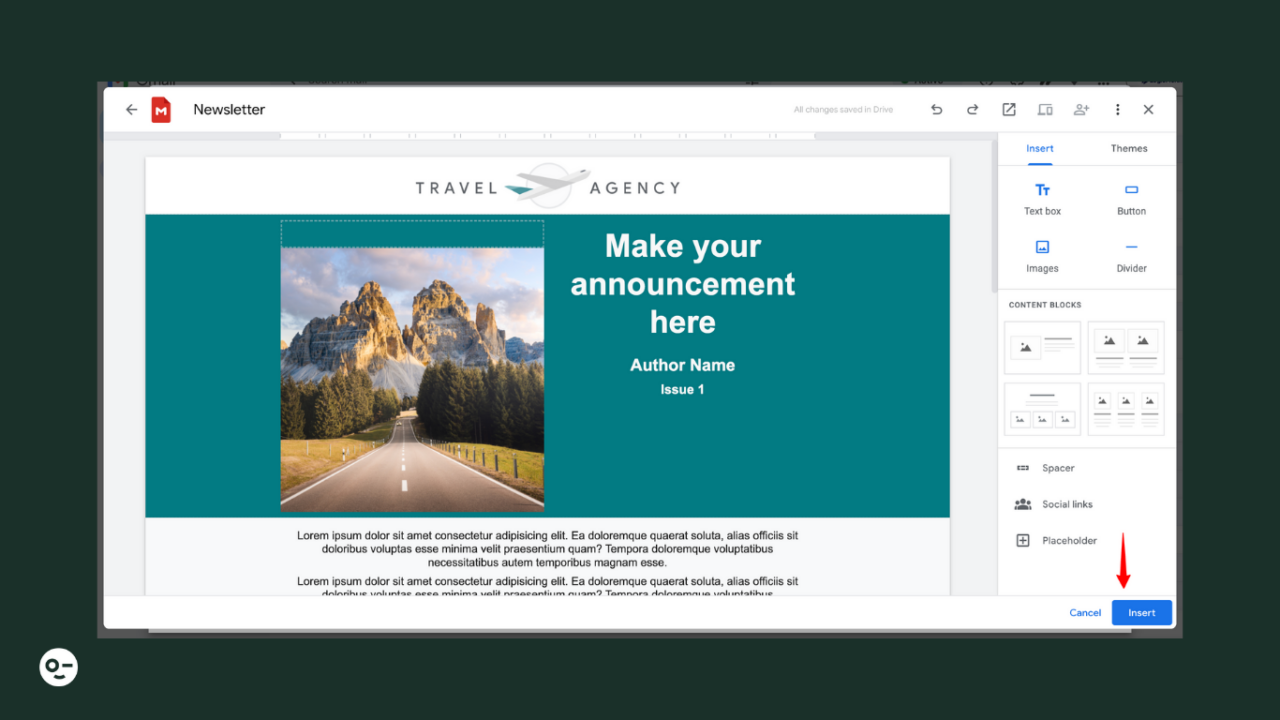
4. Click the Edit layout button.

5. Edit the template directly in the window. You can change text, images, buttons, links, and sections however you prefer.
6. Click Insert to add this layout to Gmail.
7. Add your subject line and recipients. If you have access to a mail merge, you can personalize your email using tags like @firstname or @email.
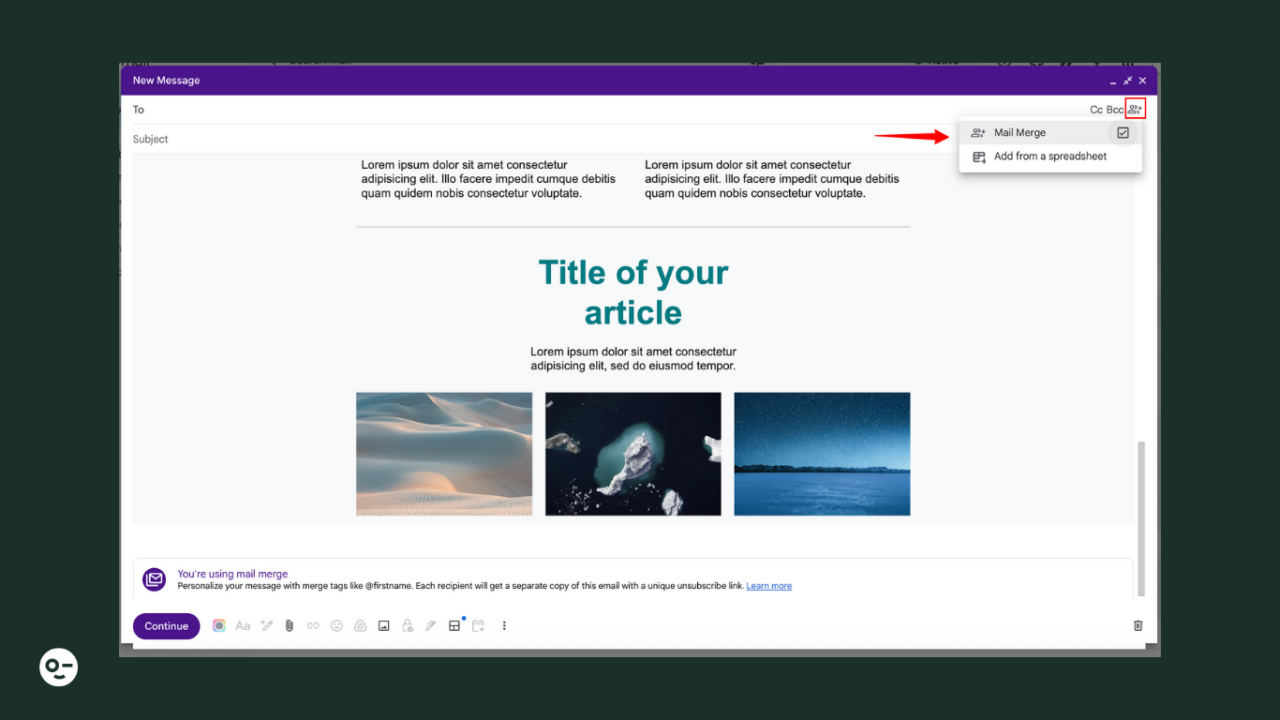
8. Review the final layout and click Send when everything is ready.
This is also an easy option, but you need to have access to Google Workspace. If you don’t, this option won’t work for you.
Method 3: Use Google Docs
Google Docs gives you basic templates and more space to format your content. So here’s how to use it for sending newsletters:
Open Google Docs and click Template Gallery.

- Scroll to the “Work” section and select any newsletter template from the three available ones:
– Geometric
– Lively
– Plum
- Edit the template as you like.
- When the layout is ready, press Ctrl+A to select and Ctrl+C to copy.
- Now, open Gmail and click Compose.

- Press Ctrl+V to paste the newsletter into the email body.
- Fix any formatting if something looks off after pasting.
- Add a subject line and your recipients.
- Once everything looks right, hit Send.
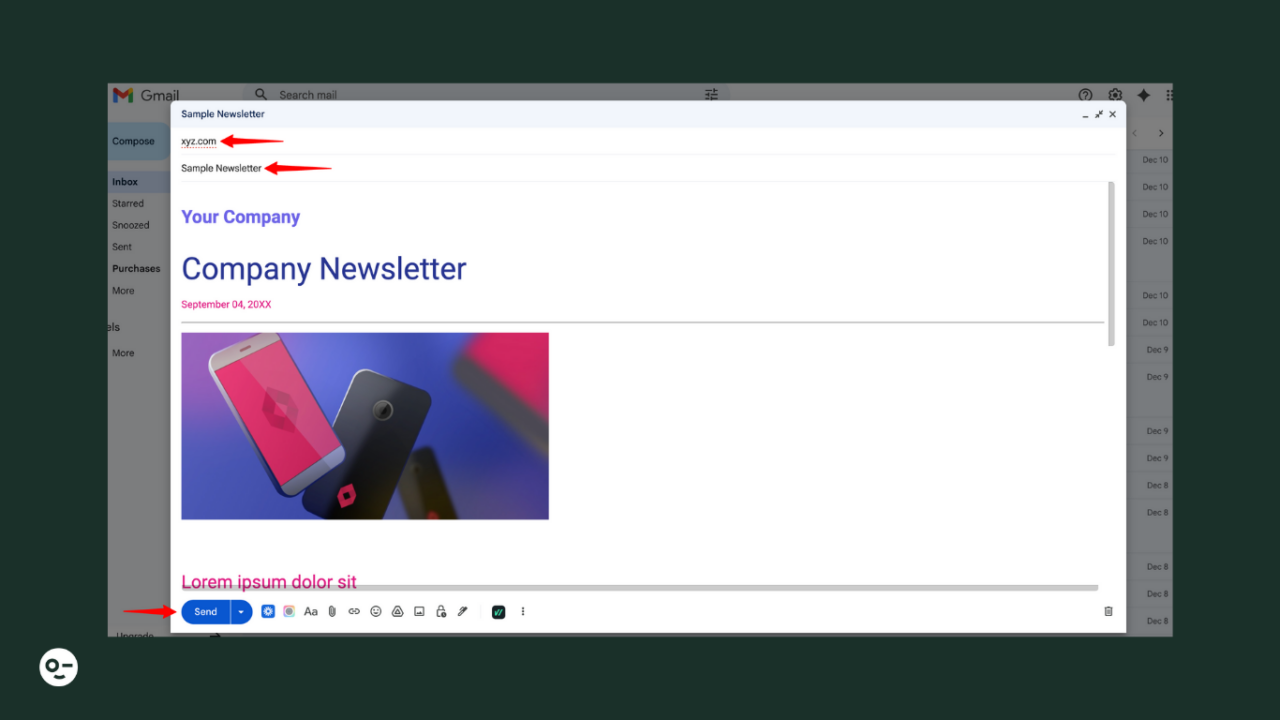
This method is simple, but formatting may change when you paste the content into Gmail. So you have to double-check everything. You also won’t be able to see the preview, so make sure to test the email before sending.
You can also use Designmodo’s email builder to send newsletters. Here’s how:
1. Create and Export Your Postcards Template
- Go to Designmodo and sign in to your account (or sign up if you haven’t yet).
- From the Apps dropdown, select Postcards > Open App.
- Click Templates and enter “newsletter” in the search bar.
- Choose a design from the available options and open the one you like.

- You can now edit your chosen templates however you like:
– Click any text block to edit copy
– Replace images or upload your own
– Add or remove sections using drag-and-drop blocks
– Update buttons, links, and colors to match your brand - Once you’re done, click the eye button to preview your email. You’ll see the following options:
– Preview & Share
– Email Preview

- Once you’ve previewed, click Export in the top-right corner. Then you’ll see the following options in the image:
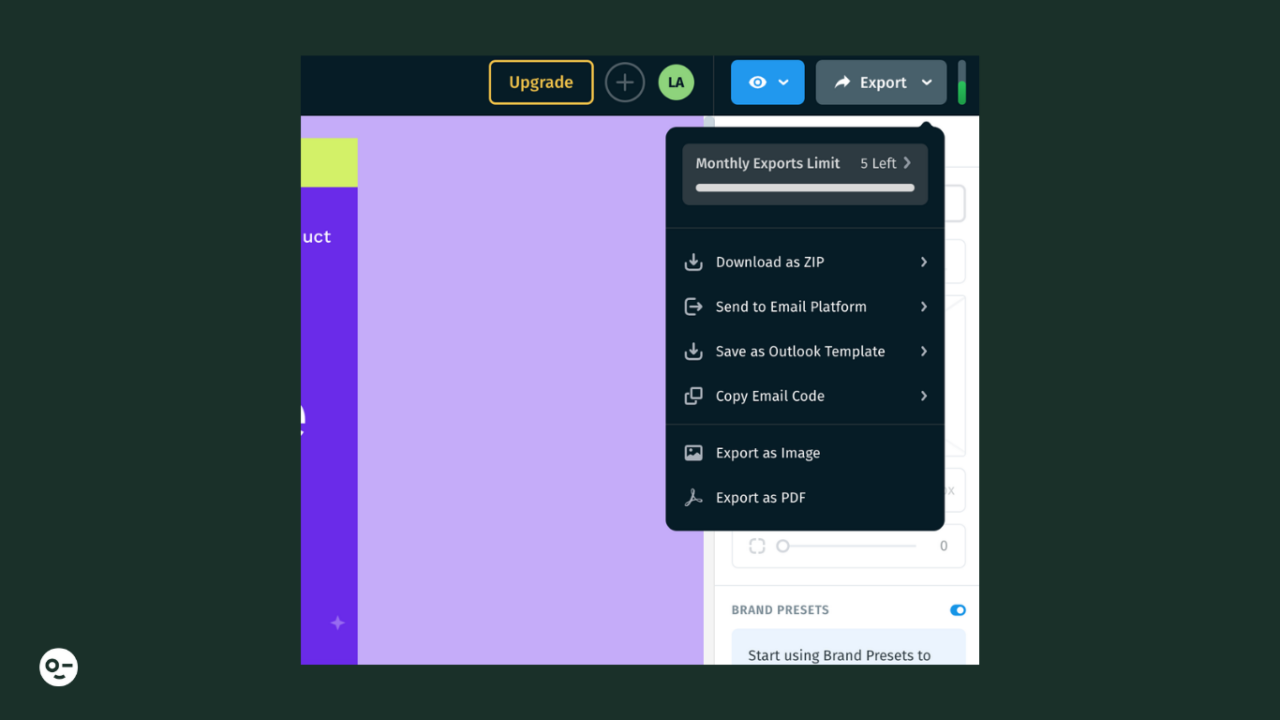
– From this dropdown, select the Copy Email Code option.
– Make sure Host images/fonts online is enabled.
– Click the Copy Email Code button to copy the complete HTML code of your newsletter.
2. Replace Gmail’s HTML with Your Postcards’ HTML
Now do the following:
- Head over to Gmail and click Compose.
- Type anything in the email body (like “test”).
- Highlight the text, right-click, and select Inspect. This opens your browser’s developer tools and shows the HTML for your email body.
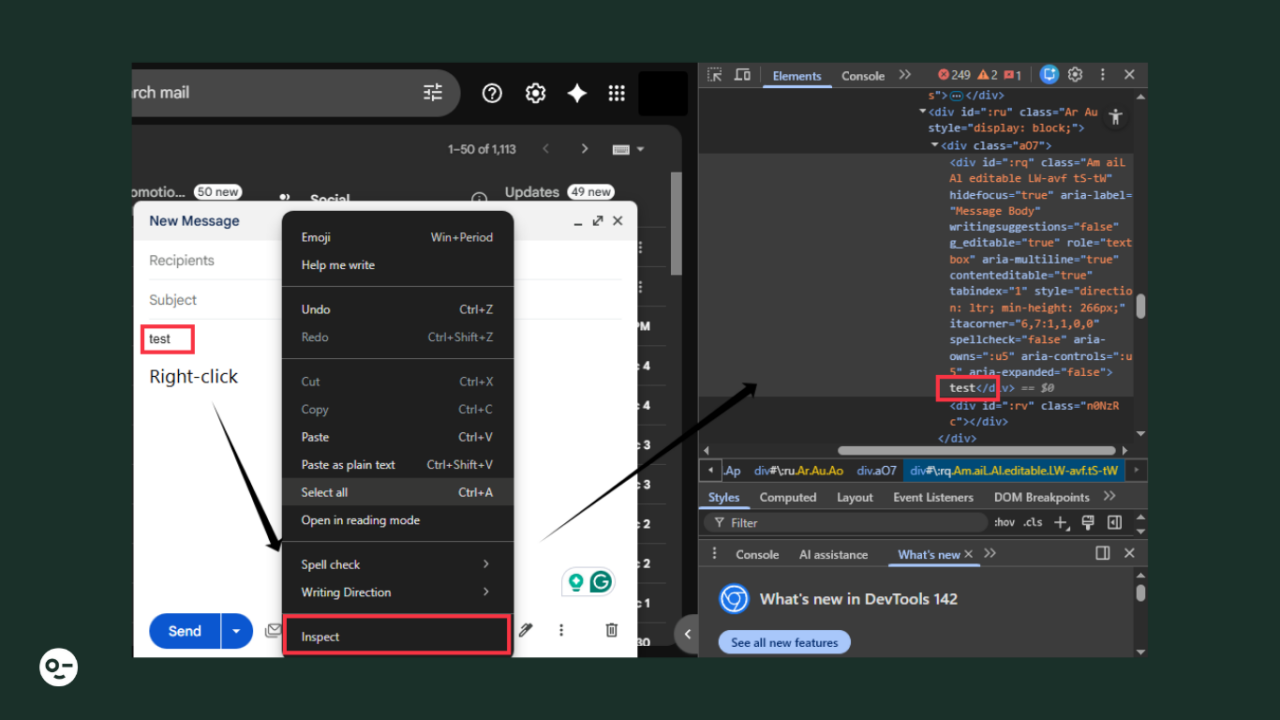
Now, once you are in Gmail’s developer tools:
- Right-click the highlighted element and click Edit as HTML.

- Replace the sample text you wrote in the email body (test) with the copied HTML.
- Click anywhere to apply changes and close the developer tools.
After this, your Postcards design will appear inside your Gmail draft. Send yourself a test email to make sure everything displays correctly.
When you send newsletters via Gmail, make sure to consider the following:
- Make your layout simple and clean, so your email is easy to read.
- Check all links and images before sending to avoid mistakes.
- Send a test email to yourself first to fix formatting issues.
- Schedule your newsletter at a time when your audience is usually active.
- Check your email on your mobile device to make sure it displays properly.
- Choose a newsletter style that supports your goal, whether you are educating or promoting.
- Keep most of your content helpful, and keep the promotional part small.
- Write a clear and engaging subject line to encourage more opens. You can test yours using the AI Email Subject Line Tester.
- Focus on one main call to action so readers know exactly what to do next.
Gmail is a good platform for sending newsletters, but it is important to understand the limitations that can affect your email performance:
- It does not provide email marketing metrics such as open rate or bounce rate, so it will be hard for you to track performance. But you can calculate yours using the Email Open Rate Calculator.
- It does not allow A/B testing, so you cannot compare different versions of your email.
- Emails may end up in the spam folder because Gmail is not designed for bulk sending.
- Without Mail Merge, personalizing each newsletter becomes almost impossible.
- Gmail offers limited editing abilities, since features like adjusting image dimensions or customizing layouts are restricted.
- If you send newsletters with the BCC method, it may look unprofessional and can weaken your campaign if Mail Merge is not available.
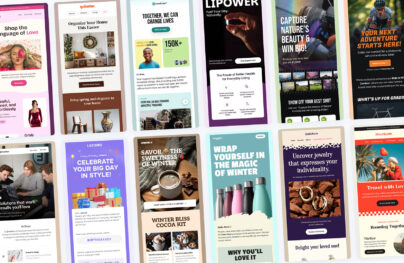
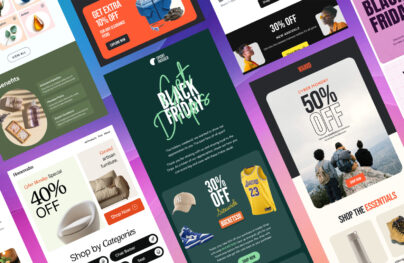
If you don’t want to design a newsletter from scratch, ready-made newsletter templates can save you time and avoid formatting issues.
Below are five newsletter templates you can customize and send directly from Gmail, depending on your goal and audience.
This template is ideal for seasonal campaigns and holiday promotions. It uses bold visuals, clear product sections, and strong call-to-action buttons that translate well inside Gmail.

See the full template & edit it in Postcards
It’s perfect for online stores or brands that want to highlight multiple offers without overwhelming readers.
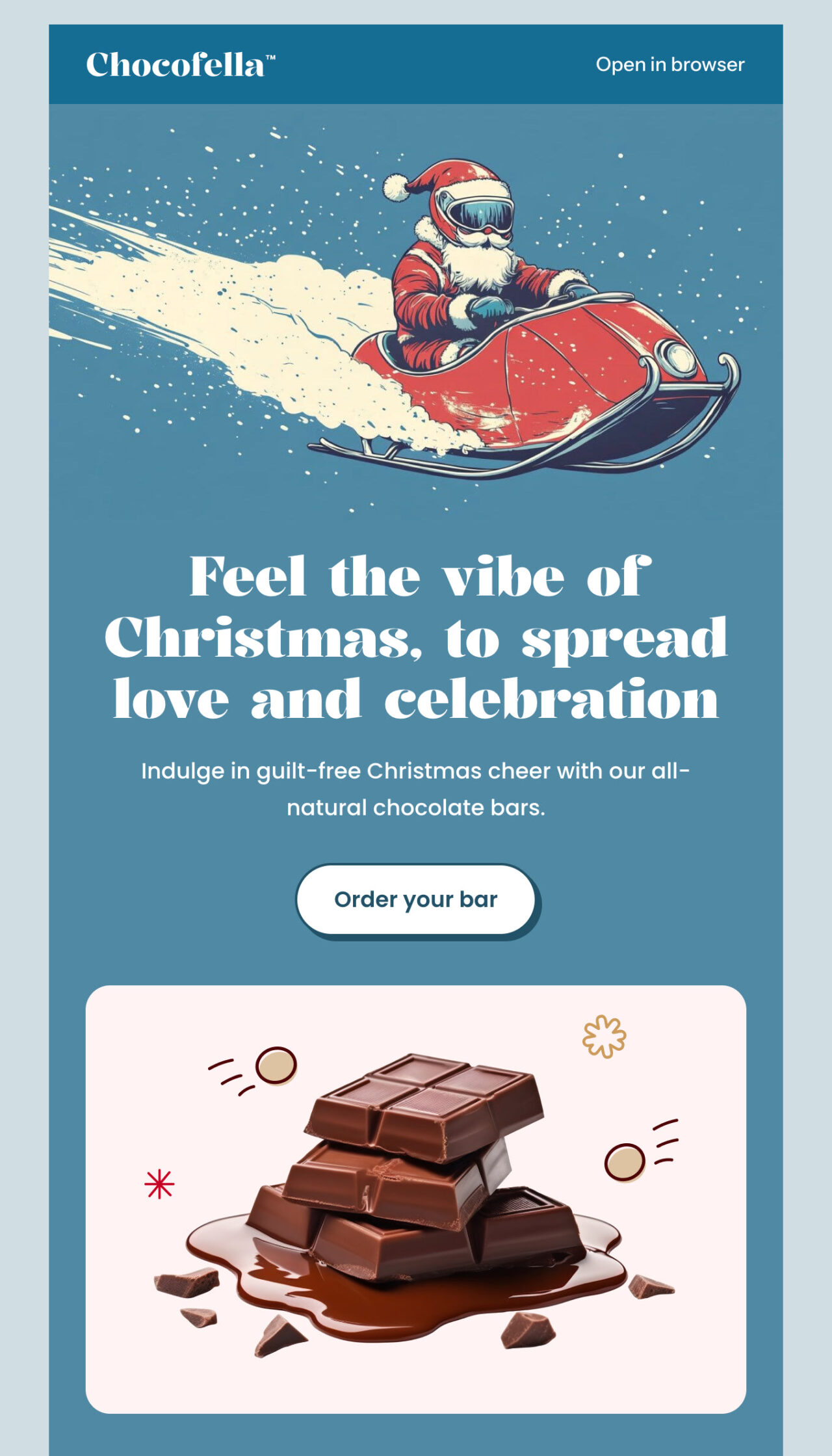
Chocofella is a great example of a product-focused newsletter that tells a story. It combines visuals, short product descriptions, and trust-building sections like ingredients and benefits.
See the full template & edit it in Postcards
This template works best for food, lifestyle, or DTC brands that want to educate while selling.
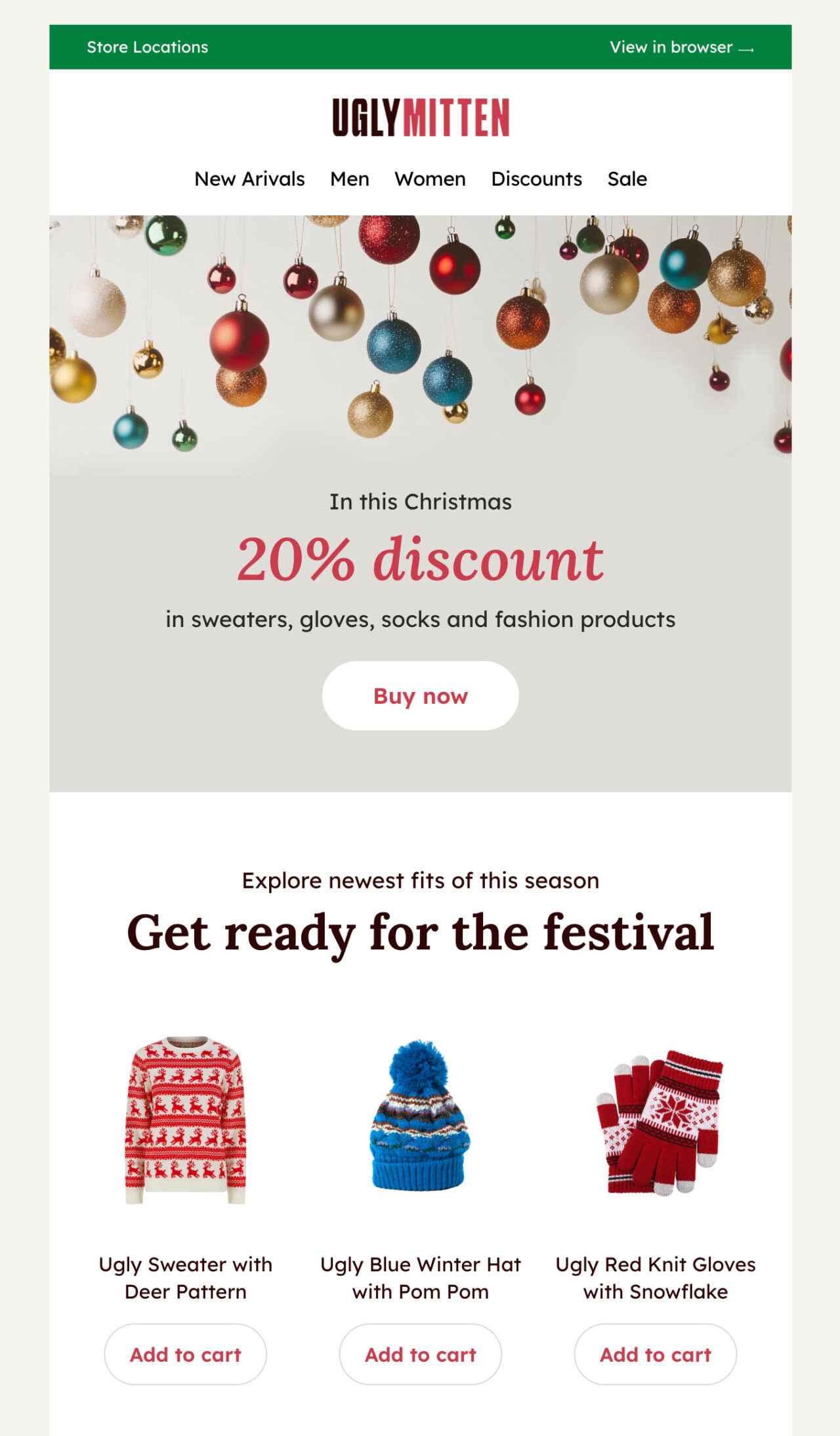
This template is perfect for retail promotions and collections.
See the full template & edit it in Postcards
It clearly shows products, prices, and “Add to cart” actions, which makes it easy for readers to browse directly from the email. So, it’s a good fit for clothing stores or brands running discounts and seasonal sales.
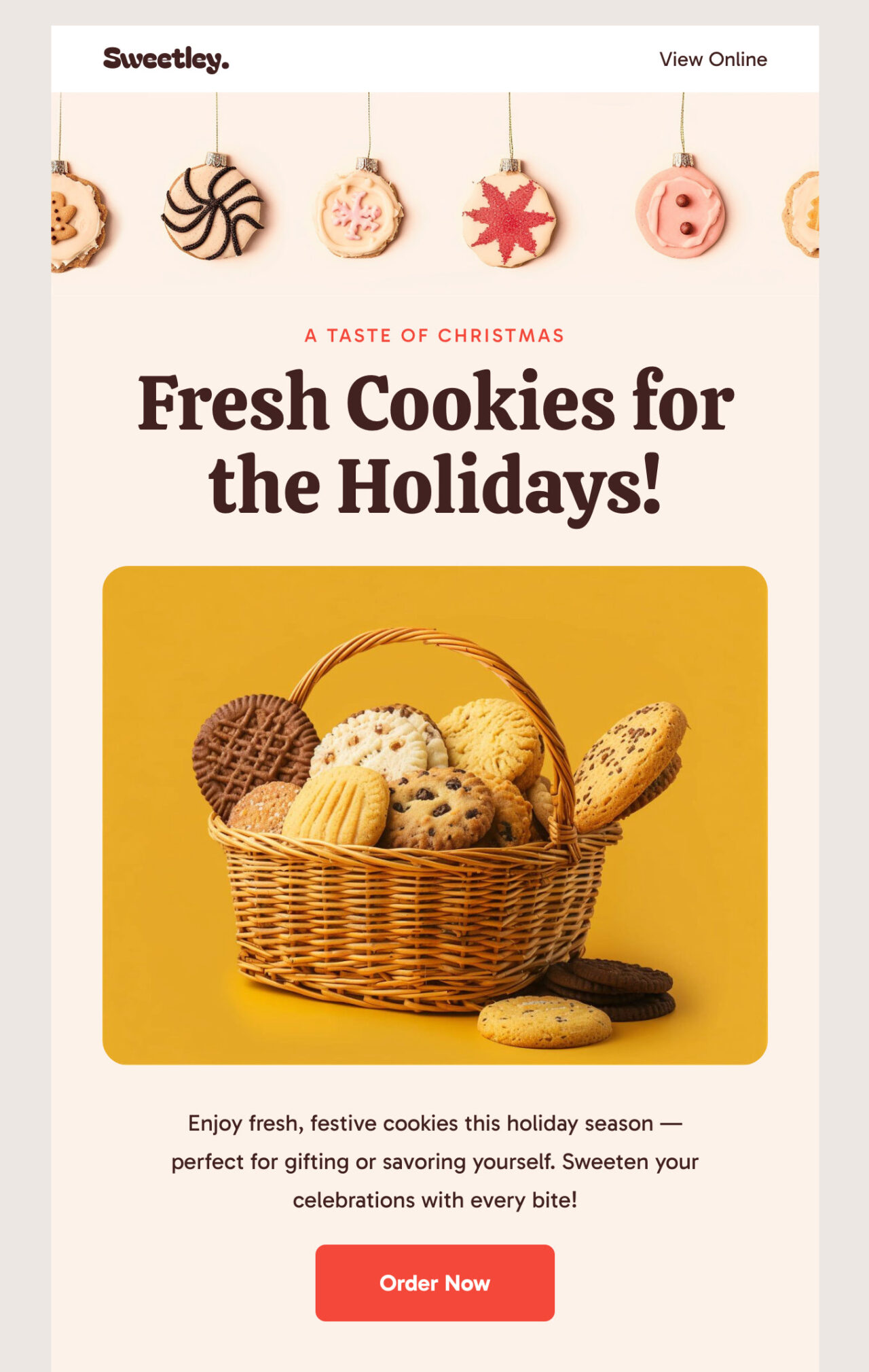
Sweetley keeps things simple and visually warm, which makes it great for small businesses or local brands.
See the full template & edit it in Postcards
The layout focuses on one main offer at a time, supported by product highlights and a single, clear CTA. This is ideal if you want a clean Gmail newsletter without too many sections.
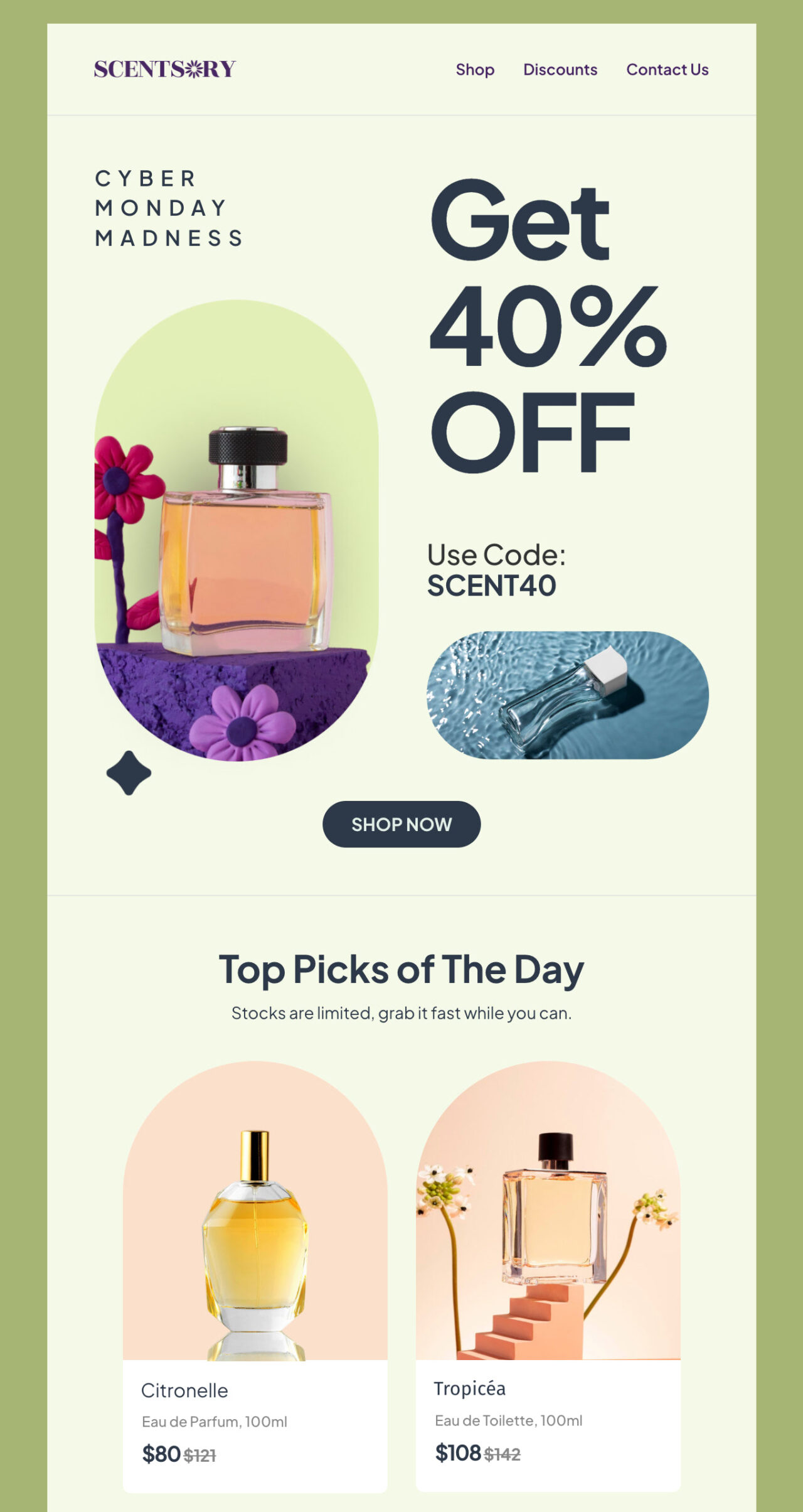
Scentsory is perfect for promotional email campaigns like flash sales or special discounts. The design highlights the offer first, then supports it with product recommendations and benefits.
See the full template & edit it in Postcards
This makes it perfect for beauty, wellness, or premium brands that want to send a polished, modern newsletter through Gmail.
Now that you know how to make an email newsletter in Gmail, take a few minutes to align your content with a clear goal.
Decide what action you want readers to take. Is it visiting a page, making a purchase, or anything else? Then build the newsletter around that single outcome.
Choose a template that supports that goal and remove anything that doesn’t move the reader forward.
Once your newsletter is ready, send a test email and review it on both desktop and mobile. Check spacing, images, links, and your call to action. If everything looks right, send it to your email list.
FAQs
To send a PDF as a newsletter in Gmail, attach the PDF to your email or upload it to Google Drive and share the link. Avoid pasting the entire PDF content into the email, as it may disturb formatting and reduce readability. For better engagement, include a short summary in the email body and link to the PDF instead.
What Is the 60/40 Rule in Email?
The 60/40 rule in email marketing suggests that about 60% of your newsletter should focus on helpful, educational, or engaging content, while 40% can be promotional. This balance keeps readers interested without making the email feel overly sales-driven.
The best format for an email newsletter is a simple, responsive layout with clear sections and one main call to action. So, use short paragraphs, clear headings, and a good balance of text and images.
The best way to send email newsletters is to use the Designmodo templates plugin. It lets you choose, customize, and send professional newsletters without coding. This prevents formatting issues and keeps your emails looking consistent.
Gmail has over 2.5 billion active users. This means email newsletters are still effective if you provide value and send consistently. They’re a reliable way to build relationships, share updates, and drive repeat engagement without relying on social media algorithms.