How to Track Email Traffic in GA4 (+ Custom Report Guide)
No doubt, you put so much effort into writing the perfect subject lines, designing beautiful email templates, and segmenting audiences, but if you’re not measuring what happens after the click, what is all the effort for?
I’m pretty sure most of the people trust in the built-in analytics of email service providers but they have some limitations.
So, I am here to explain how you can track email traffic using Google Analytics 4 (GA4), which is my favorite (I know, shocking 😅), what it provides differently from native analytics, what metrics you should focus on, and how these insights help you grow your business.
Why Email Tracking Matters
Let’s start with the obvious question: why bother tracking email traffic?
Well, email is one of the most powerful owned marketing channels we have. I am not the only one who owns this claim: 42% of B2B marketers consider email as the most effective marketing channel.
The reason is obvious: emails drive high-intent traffic, they convert well, and they reache people who already know and trust your brand. But without proper tracking, you can’t answer simple but crucial questions like,
With Postcards Email Builder, you can create and edit email templates online without any coding skills! It includes more than 100 components and the AI Suite, which builds and translates full templates from a single prompt.
Free Email BuilderFree Email Templates- Do your users engage differently when they come from email vs. other channels?
- What web page performs best with your subscribers?
When you don’t track email, you miss the chance to optimize your content strategy, improve your funnels, and attribute revenue accurately.
Why Tracking Email Performance with GA4
There are plenty of platforms that provide some level of email analytics, for example most ESPs (email service providers) show open rates, click-throughs, and sometimes even heatmaps. But as a data-driven SEO and growth marketer, that’s not enough for me.
GA4 provides me what ESPs can’t: a comprehensive, post-click view of user behavior, from the moment they land on our site until they convert (or drop off).
Here’s why I trust GA4 to track our email traffic:
- It shows what users do after the click. Did they scroll? Read more than one page? Sign up? That’s very valuable data.
- It brings email into the same dataset as organic, paid, and referral. So I can compare channels side by side.
- It gives me flexibility. With custom events and Explore reports, I’m not boxed into one way of looking at performance.
- It supports long-term insight. I can track not just immediate conversions, but future actions tied to the same user or session.
How GA4 Compares to Native Email Analytics
While I rely heavily on GA4, I don’t deny the power of email platforms’ built-in analytics. Each has its strengths, but they serve different purposes.
Here’s a quick breakdown of how I think about the two:
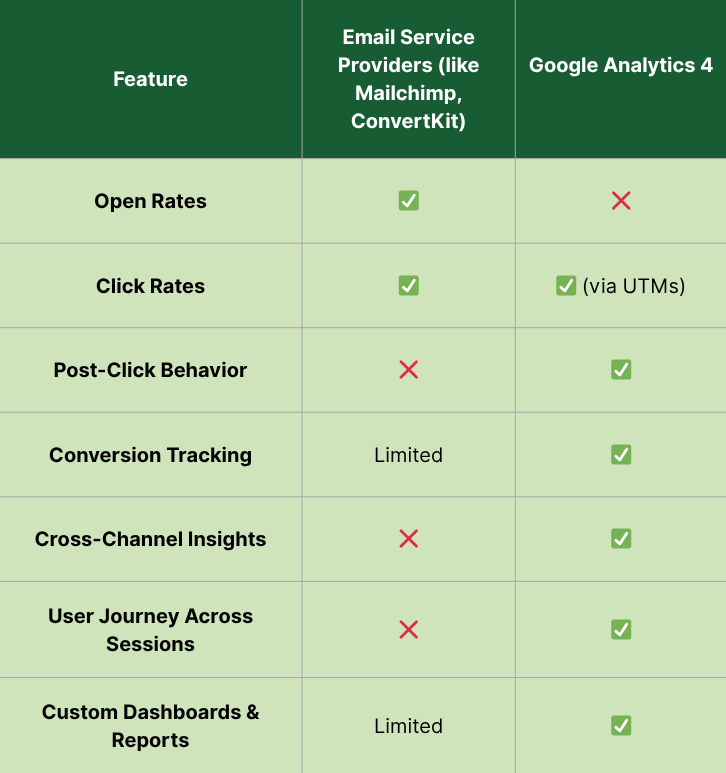
Thus, why use both? I prefer ESPs to monitor deliverability, open rate trends, and click maps. Then I jump into GA4 to understand what happened after the click because that’s where the revenue data lives.
How to Set Up Email Tracking with GA4
At this point, I’m assuming you already have a GA4 account and property set up for your website. If you haven’t done that yet, navigate to Google’s setup guide.
With Pulsetic you’ll be instantly notified the moment your website, API, or server becomes unavailable. Monitor uptime from multiple global locations and respond to incidents before your users are affected.
Create beautiful status pages in minutes to keep customers informed during outages and build trust with transparent communication.
Start Monitoring for FreeWhen you are done with the setup, follow these steps:
1. Add UTM Parameters to Create Trackable Emails
Every link in your emails should include UTM (Urchin Tracking Module) parameters to give GA4 information about the link. Without UTMs, GA4 might lump email traffic under “direct” or miss campaign attribution entirely.
So, UTM parameters have basically several fields like:
Campaign Source (required): Tells GA4 where the referrer the traffic originated.
Example: newsletter, launch_email
Campaign Medium (required): Describes the type of channel sending the traffic.
For email, this is usually just: email
Campaign Name (required): The name of the specific campaign to which the traffic is tied.
Example: july_digest, back_to_school_teaser
Campaign Content (optional): Used to distinguish different links in the same email. You can use it for A/B testing CTAs.
Example: cta_top, hero_img_button
Campaign Term (optional): Originally built for paid search keywords. I leave this blank for email campaigns.
And now, build UTM parameters to add to your destination URL. You can do this manually or use a Campaign URL builder by Google.
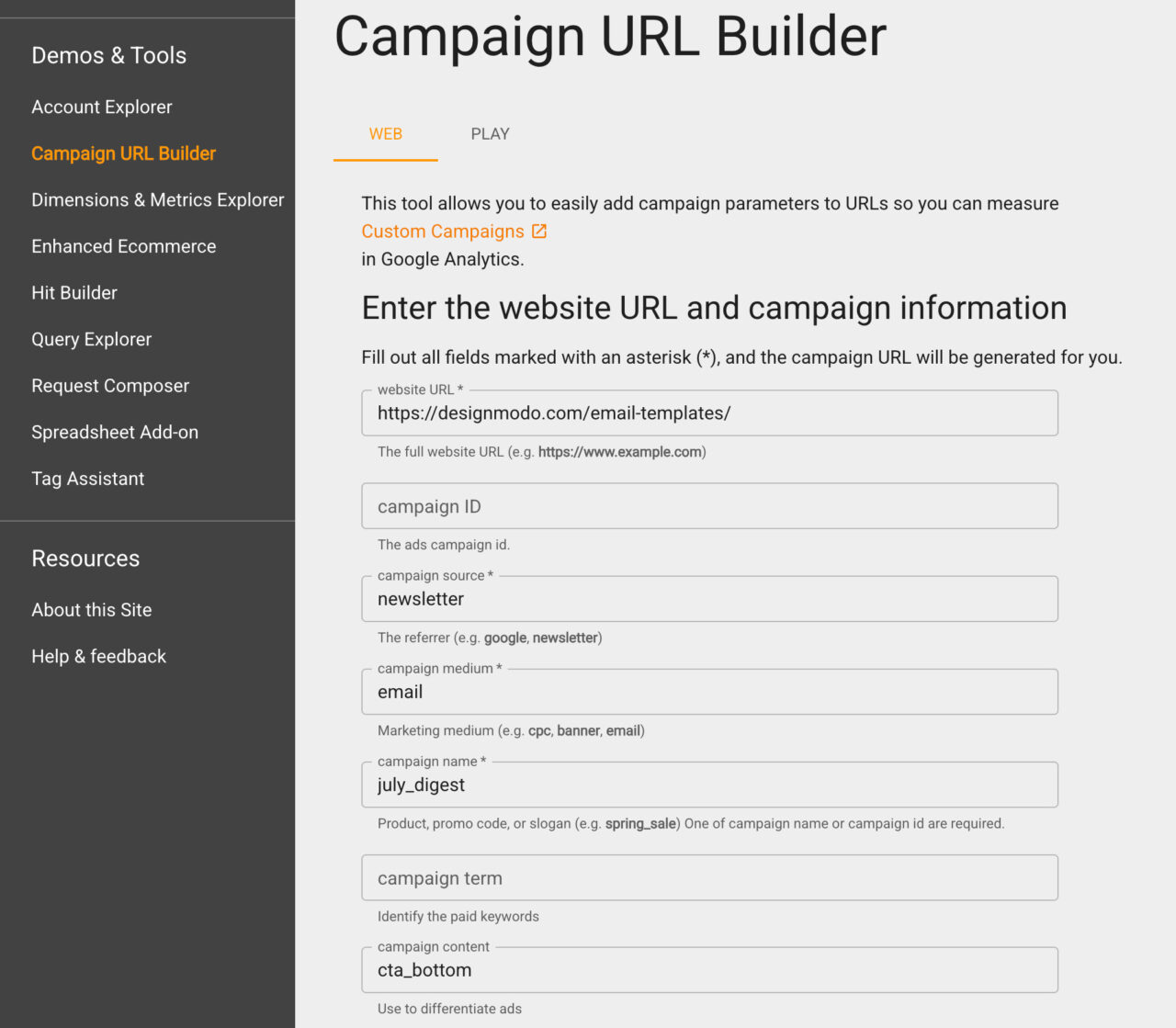
Eventually, the full URL with UTM parameters you added should look like this:
https://designmodo.com/email-templates/?utm_source=newsletter&utm_medium=email&utm_campaign=july_digest&utm_content=cta_bottom
Side note: I generally use the Campaign URL builder tool to prevent misconfigured UTM links and use a spreadsheet to keep everything clean and consistent.
2. Check Email Traffic in GA4
In GA4, navigate to Reports > Acquisition > Traffic acquisition. Here you can see how visitors are arriving at your site, broken down by default channel groupings.
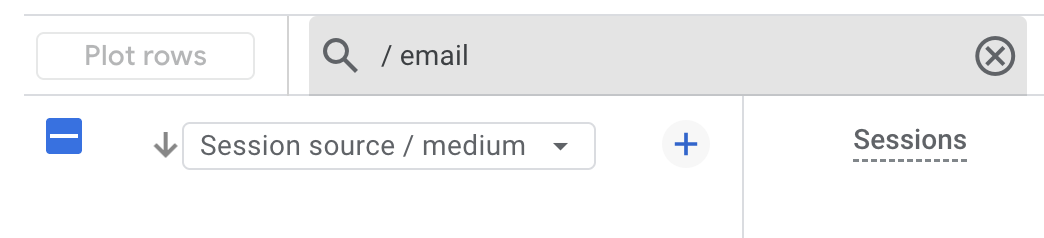
You’ll see all kinds of traffic from all sources here. To see users only arriving from emails, just type “/ email” into the search bar, then choose the Session source / medium instead of the Default channel group. This way, you can see the traffic source/medium defined in the UTM parameters.
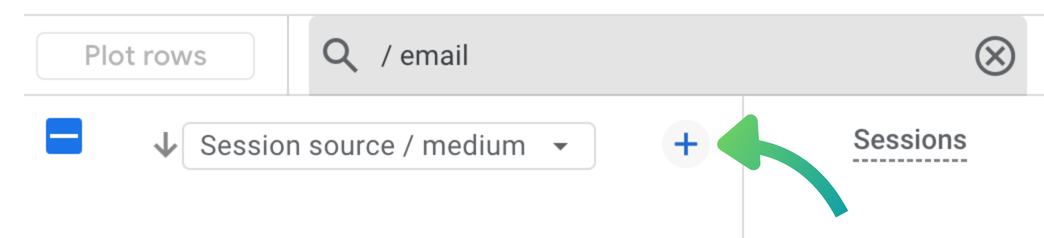
Next, click on the plus icon next to the Session source / medium and choose Session campaign (to see the campaign name defined in UTM parameters) among other options in Traffic source.
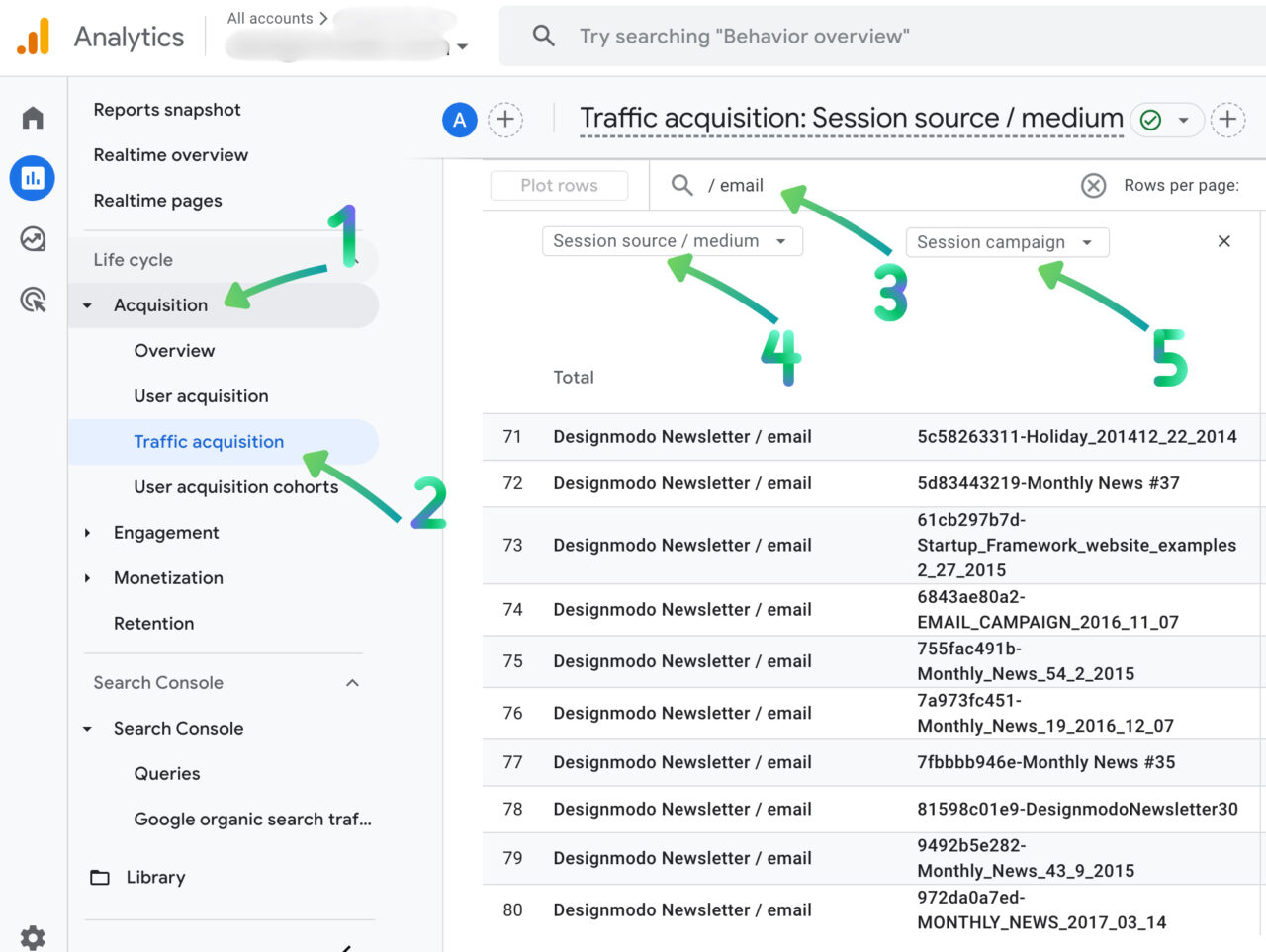
On the other hand, if campaign content is defined as another UTM parameter, then navigate to Reports > Acquisition > User acquisition, and follow the same steps but this time, choose the Session manual ad content by clicking on the plus icon.
If you find yourself checking this data regularly, I recommend you create a custom report in Explore so you can access your email performance more quickly in the future.
This process provides a fast and focused way to check how email campaigns are performing, as you don’t waste time applying all steps every time you analyze a new campaign.
Bonus: How to Create a Customized Exploration Report in GA4 for Email Tracking
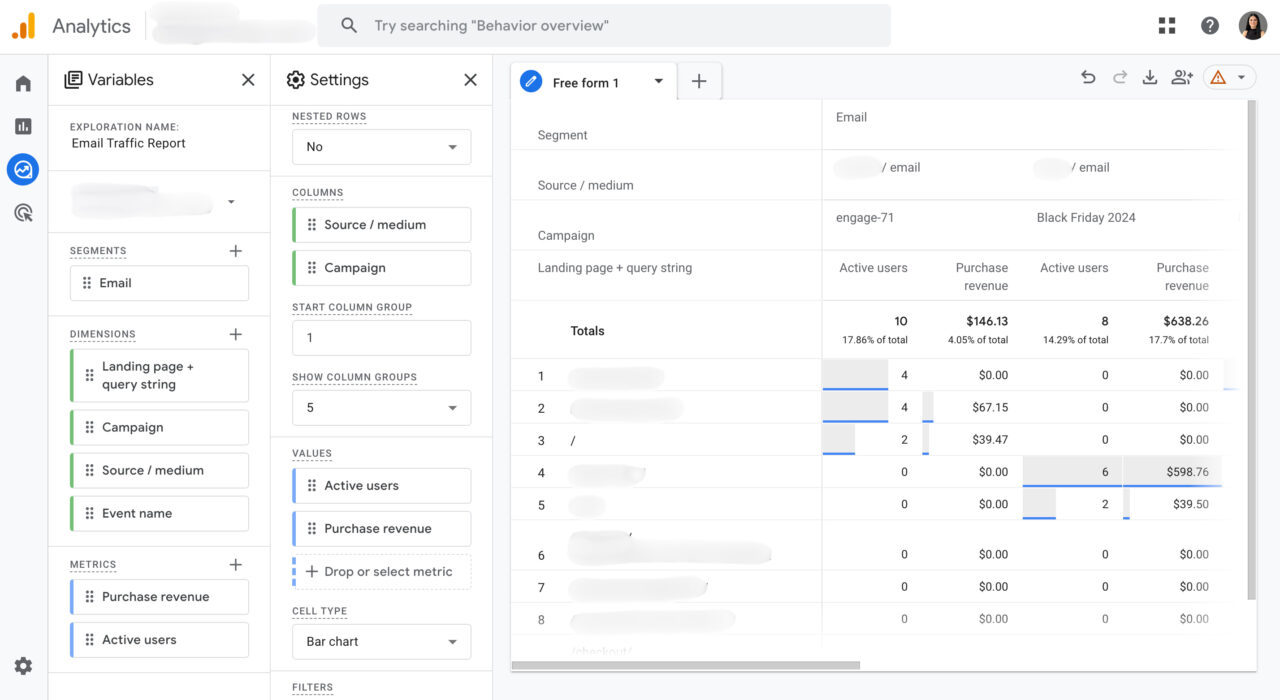
1. Go to the Explore Section
From your GA4 dashboard, click “Explore” in the left-hand menu. This is where you can build custom reports using your dimensions, metrics, and filters.
2. Choose a Blank Report
For email performance, I usually start with a Blank exploration, unless I’m mapping a specific user journey, in which case I go with Funnel exploration.
3. Create a New Segment
- Click the plus icon next to Segments
- Choose “Session segment”
- Set the condition:
Session medium – exactly matches – email - Give it a clear name, like: Email Traffic (or just Email as I did)
- Click Save and Apply
4. Set Your Dimensions and Metrics
Click the plus icon next to Dimensions and import:
- Session source/medium
- Campaign
- Landing page
Then add your Metrics, such as:
- Active users
- Sessions
- Engaged sessions
- Engagement rate
- Purchase revenue
5. Drag and Drop the Dimensions and Metrics
Drag your dimensions into Rows and Columns, your metrics into Values. Play around with all elements until the exploration report looks as you wish.
Once your exploration looks good, save it. You can also export it as a Google Sheets, TSV, PDF, CSV, or screenshot the visualizations for your reporting decks.
You can also share your custom exploration report with team members who have access to the same GA4 property. Just keep in mind that they’ll be able to view the report, but only in read-only mode, so they won’t be able to edit or customize it unless they make a copy.
Vital Metrics to Track for Email Performance
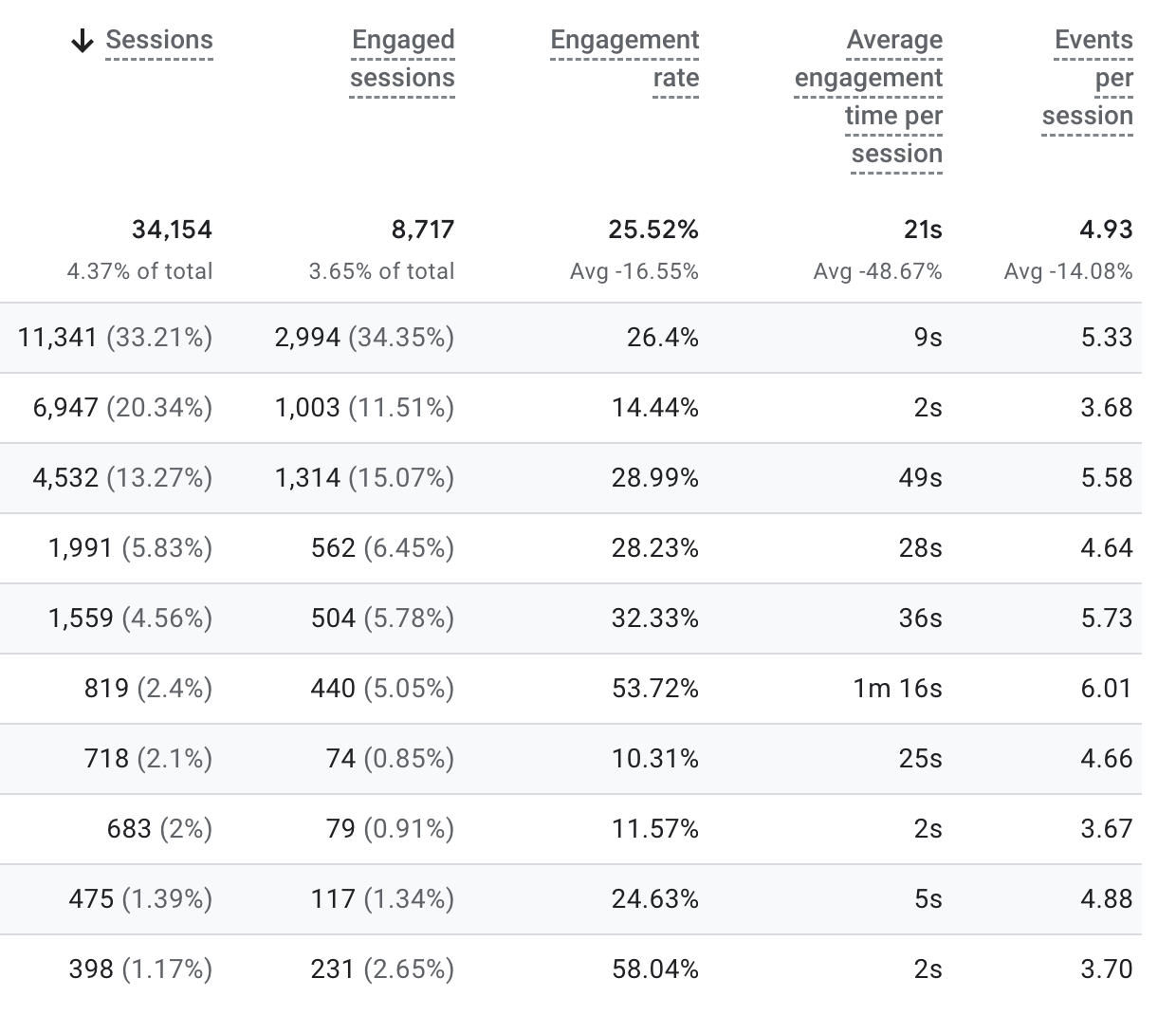
Here is what you should care about when analyzing email traffic in GA4 and ESP’s analytics:
Sessions from Email: This shows how much traffic each email generates. It’s the first indicator of campaign reach and engagement.
Engagement Rate: Engagement rate tells you if people are interacting with the page (scrolling, clicking, viewing multiple pages, etc.).
Conversions: If you set up conversions such as signups, purchases, then you can filter by email campaigns to see which ones drive actual business results.
Time on Site & Pages per Session: This one is especially useful for educational emails. You’d want to know if readers stick around to learn more after clicking.
Landing Page Performance: Which web page works best? Are visitors landing on your articles or evergreen guides and sticking around?
How to Use Tracked Email Data to Grow the Business
This is where things get exciting. Once you have good email tracking in your hands, you can connect the dots to drive growth.
- Double down on top-performing web pages. If a blog post consistently drives conversions from email, you can prioritize similar topics in future newsletters.
- A/B test headlines and CTAs. You can see which version of emails brings better traffic and engagement, then you can write smarter.
- Segment your list wisely. If you notice that design-focused email performs better with a specific group, tailor campaigns accordingly.
- Improve your onboarding sequences. For example, by tracking behavior from onboarding emails, you can spot where users drop off and optimize accordingly.
Now It’s Your Turn to Measure the Right Things
GA4 isn’t perfect and I’ll be honest, the learning curve is steep. However, once you’ve got your email UTM structure in place and understand where to look in the reports, it becomes a powerful tool to track performance and have deeper insights.
You may also want to read:
Best Privacy-Focused Alternatives to Google Analytics for 2025