Notification Emails: Types, Best Practices & Examples That Work
You place an online order.
Five minutes gone, but still no confirmation email.
Now you’re wondering:
- Did the payment go through?
- Did they even get my order?
Now flip it: Suppose seconds after checkout, you get a friendly email. It confirms the order, lists what you bought, and tells you when it’s coming.
That’s what good notification emails do; they keep people updated.
In this guide, I’ll explain what notification emails are, how they’re different from push notifications, the main types you can send, and simple tips to make yours hard to miss.
With Postcards Email Builder you can create and edit email templates online without any coding skills! Includes more than 100 components to help you create custom emails templates faster than ever before.
Free Email BuilderFree Email TemplatesWhat Are Notification Emails?
Notification emails are automatic messages you get when something important happens, such as when your order ships, your password changes, or there’s an update to your account or subscription.
They’re not marketing emails or newsletters. They’re simple updates that keep you informed.
Suppose you place an order for your favorite items online and a minute later, your inbox receives this email:
“Order confirmed.”
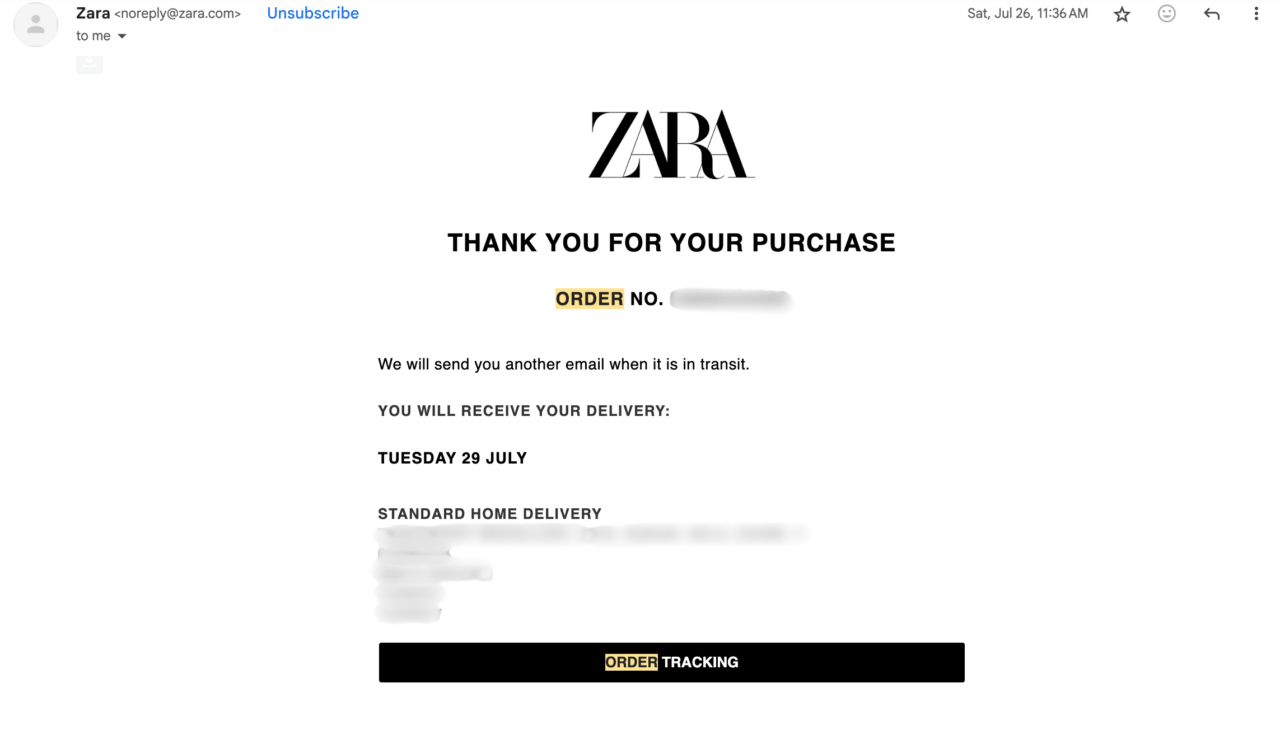
That’s a notification email: you get this right on time, and it gives you peace of mind that your order is placed.
What are the Differences Between Push Notification vs Notification Email
Both push notifications and email notifications send updates but they show up in different places and serve slightly different purposes:
Push notifications are little pop-ups you get on your phone or computer. They’re concise and usually appear instantly, like when your food delivery is 2 minutes away or your favorite item is restocked at a particular store.
Here’s an example of push notifications from EasyJet:
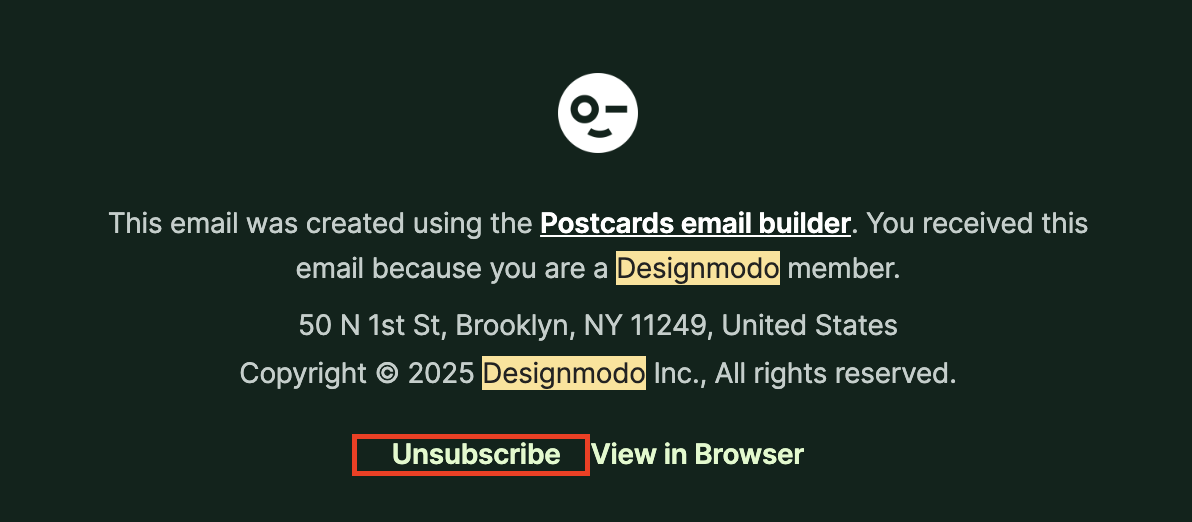
With Pulsetic you’ll be instantly notified the moment your website, API, or server becomes unavailable. Monitor uptime from multiple global locations and respond to incidents before your users are affected.
Create beautiful status pages in minutes to keep customers informed during outages and build trust with transparent communication.
Start Monitoring for Free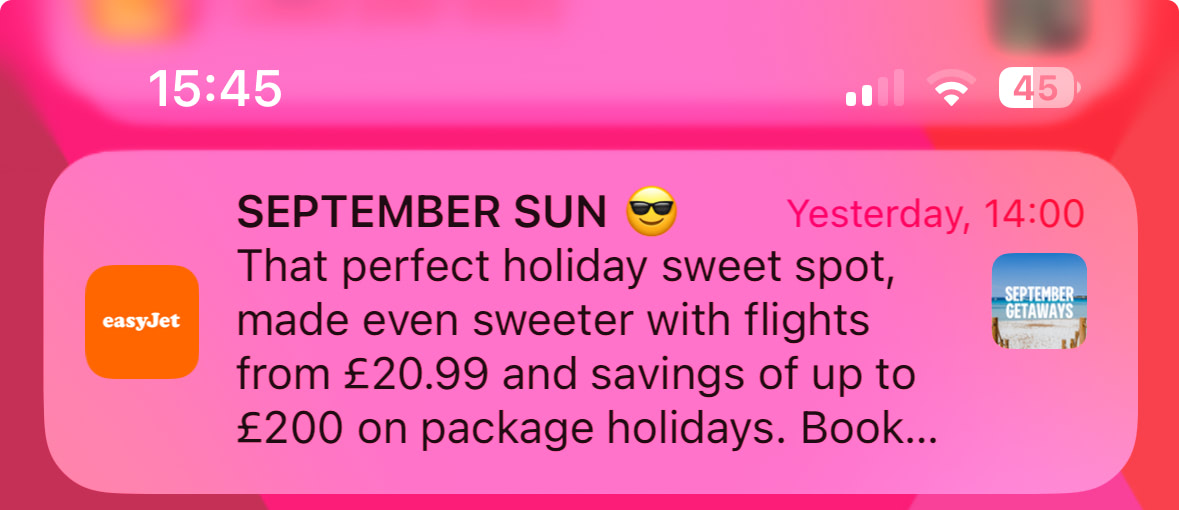
Email notifications, on the contrary, come directly to your inbox. They’re better for messages that might be longer, include details, or need to be saved, like a receipt, a password reset link, or a booking confirmation.
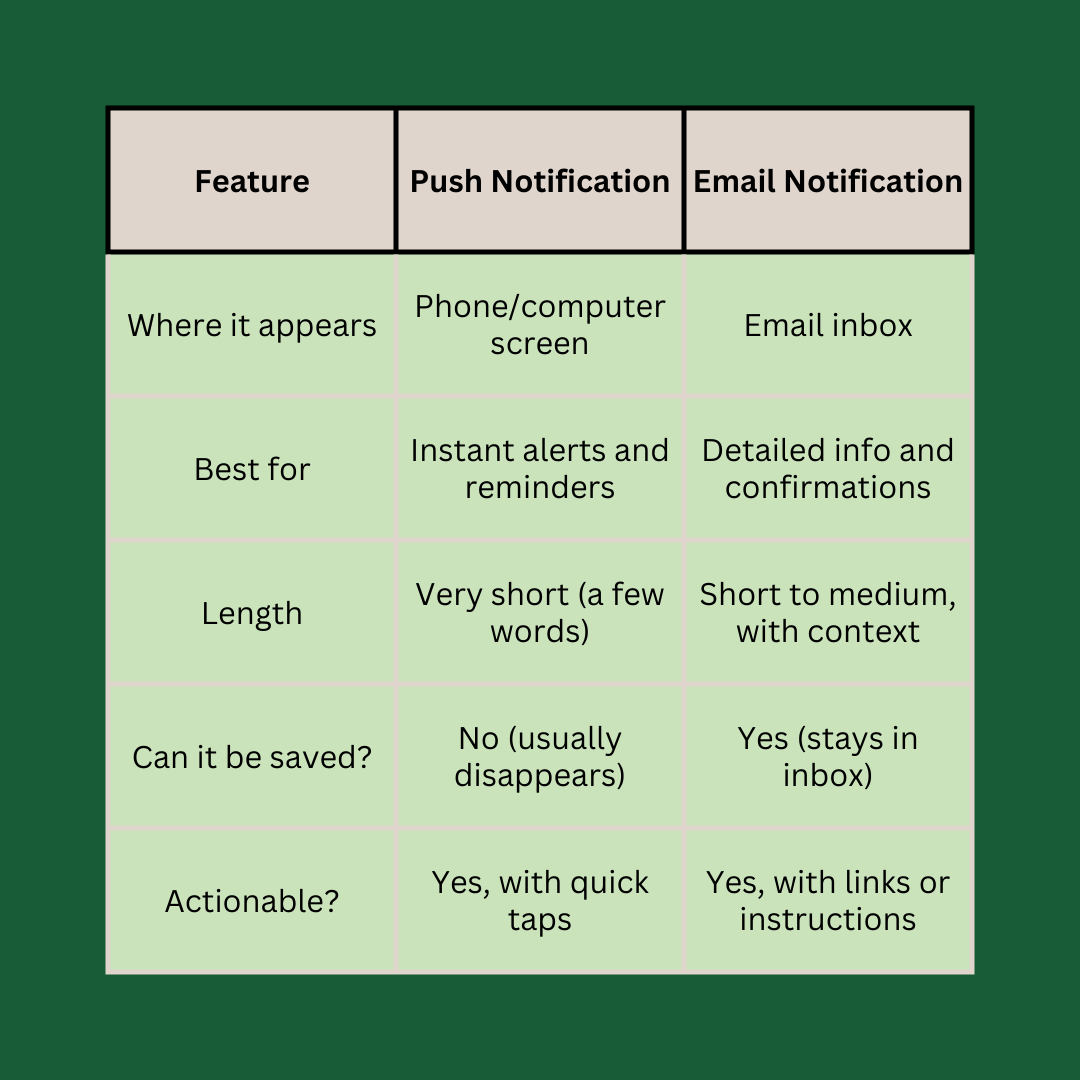
Quick Comparison of Push Notifications and Notification Emails
Here’s a quick side-by-side look to help you understand their difference at a glance:
What Are Common Types of Notification Emails
Email notifications are of many types, but they all have the same goal: to keep people updated when something important happens.
Here are some of the most common ones:
1. Welcome Emails
Ever sign up for something and wonder, “Okay… now what?”
That’s exactly why a welcome email exists. It gives users a clear next step, something like confirming their email or starting a quick tour.
Look at this example from Women in Tech SEO:
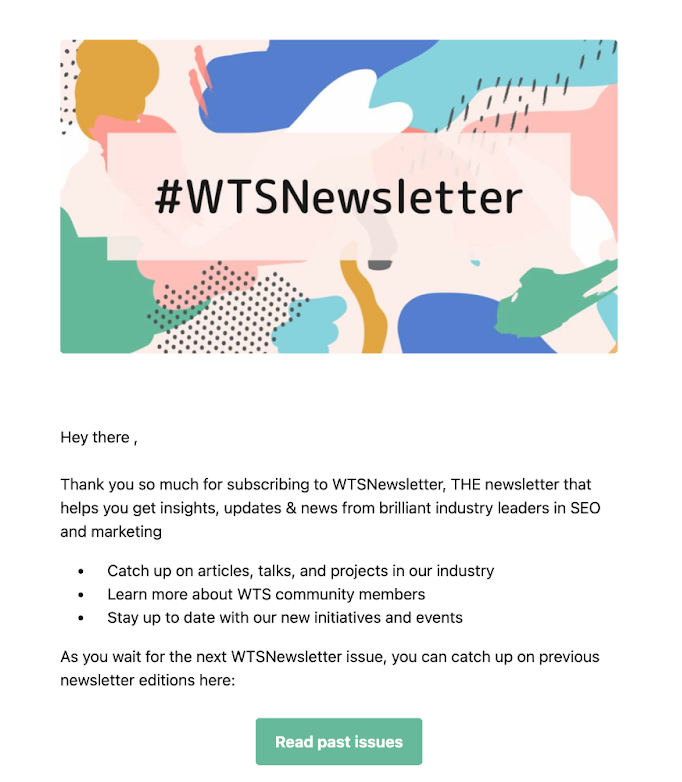
The subject line is clear: “Welcome to WTS Newsletter.” Inside, it tells you exactly what to expect from their emails, with links to past issues you can explore. There’s also a clear call-to-action button to join their community, plus a quick overview of the initiatives they run.
2. Password Reset Emails
We’ve all been there: you try logging in, but your mind goes blank on the password. You click the “Forgot password” link, and within seconds, an email comes to your inbox.
That’s a password reset email.
Its job is simple: get you back into your account quickly and securely, without confusing you, just like this email from Payoneer:
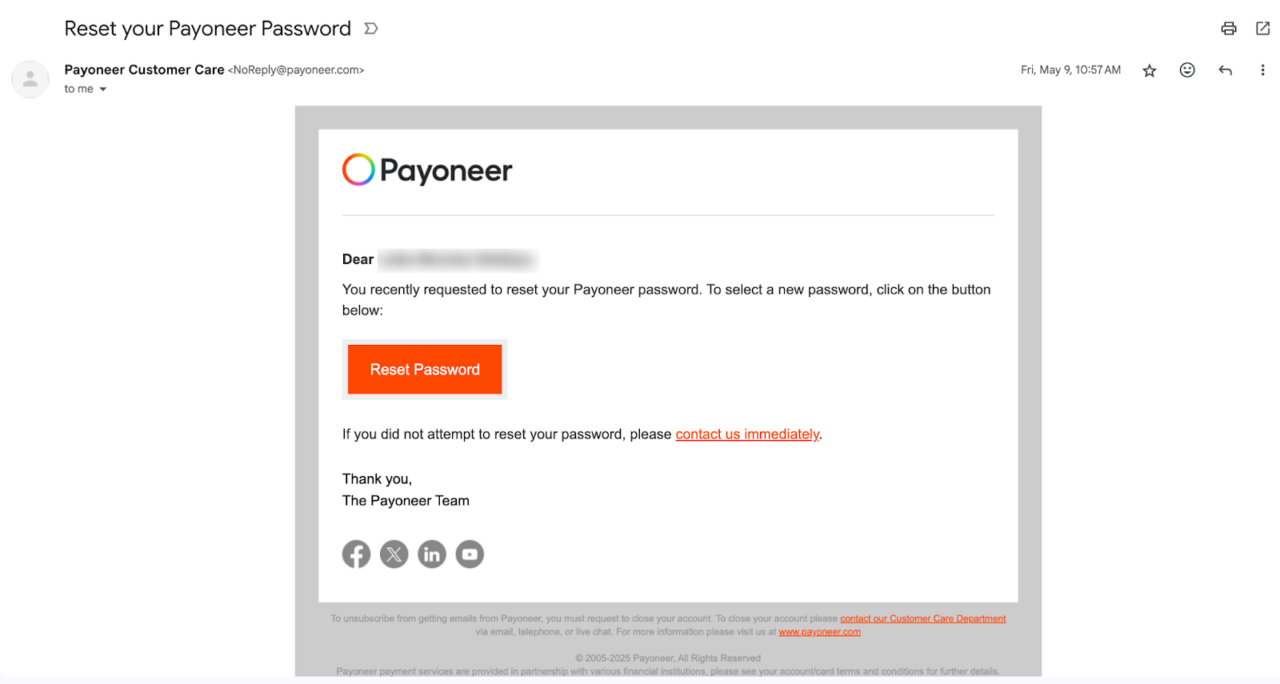
It usually includes:
- A short message
- A reset link or button
- A note that the link will expire soon (for security)
3. Order or Shipping Confirmation Emails
After you buy something online, the first thing you want to know is, did my order actually go through?
That’s what an order confirmation email helps with.
It reassures you that everything worked as expected. But a good one doesn’t only say “We got your order,” it also shows what you bought, where it’s headed, and how much you paid.
Take a look at this example from a clothing brand:
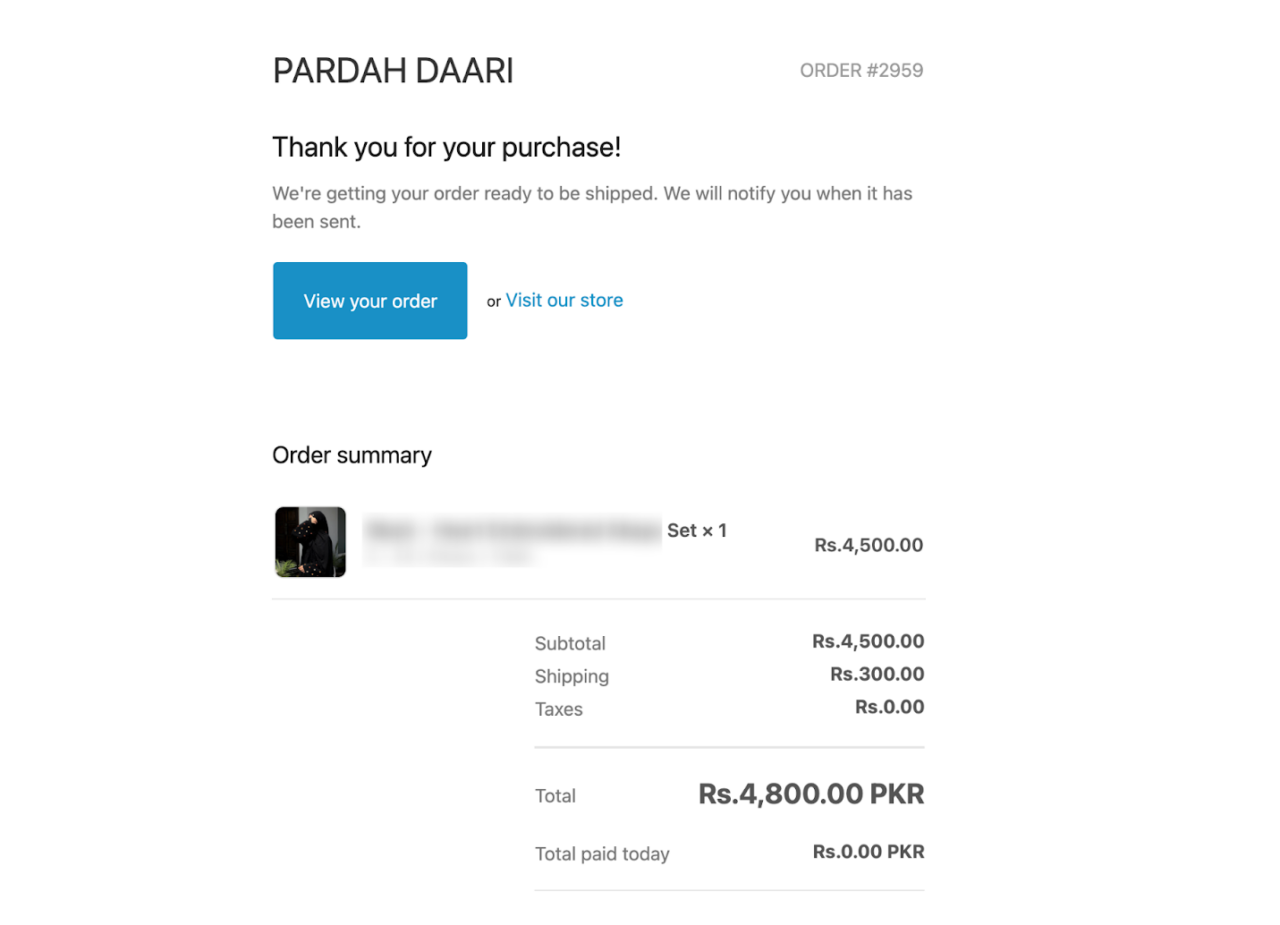
It shows:
- A short thank-you message
- A “View your order” button
- An order summary with item name, price, and quantity
- Shipping and billing details
- Total amount with a clear breakdown
4. Subscription Renewal Emails
Subscriptions are easy to forget until you get charged. That’s why renewal emails are important.
They give users a quick, friendly reminder before their billing starts (or continues) and offer the chance to make changes if needed.
A good renewal email should:
- Clearly state when the subscription will renew
- Give options to update, pause, or cancel the plan
- Keep the message short and easy to act on
This email from Zapier is a perfect example:
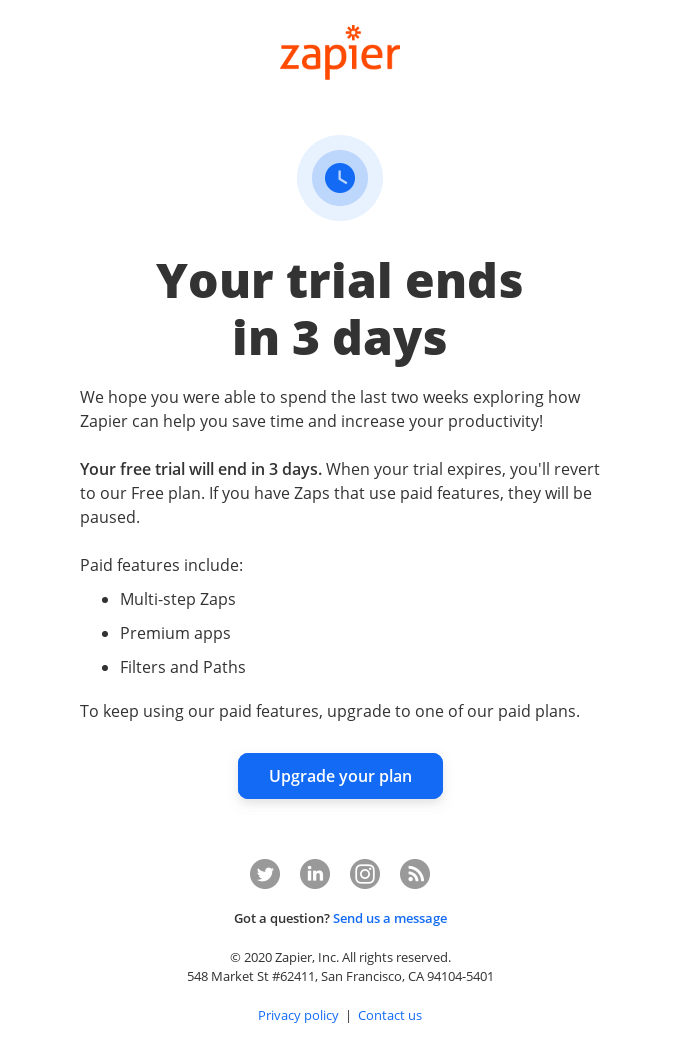
It’s simple and user-first, precisely what you want before a free trial turns into a paid plan.
5. Security alerts
Security alert emails are sent when something unusual happens with your account, like a login from a new device or suspicious activity.
Their purpose is twofold:
- Inform you about the unusual activity.
- Give you a quick way to take action if something’s wrong.
When done well, they protect accounts and also build trust with users.
Google’s security alert email is an excellent example of this:
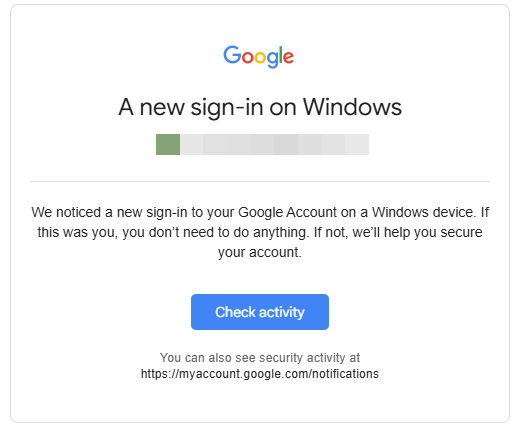
Here, the subject line “A new sign-in on Windows” is direct and clear. The message briefly explains what happened, and a single “Check activity” button makes it easy for the user to respond right away.
If the activity is legitimate, the user can simply ignore the email. If it’s suspicious, they can take immediate steps to secure their account.
When To Send Notification Emails
If you’ve placed an order, logged into your account, or changed your password, you expect an email right away. Not in an hour. Not even in 10 minutes.
In fact, transactional emails (like order confirmations or password resets) have a delivery success rate of 95%, which means they successfully reached the recipient’s inbox without being delayed or blocked.
But if they’re delayed, people may panic or reach out to support. That’s extra work for you and frustration for them.
To prevent this, here’s when you should send different types of notification emails:
- Right after a purchase, to confirm the order and build trust
- After a login or security event to alert the user
- After updates or changes, such as password changes or billing updates
Notification Email Template Examples
Let’s look at some notification email templates for different scenarios to help you get a better idea of how you should frame these depending on your situation.
Order Confirmation Email Template
When someone buys from you, the order confirmation email is your first chance to reassure them they made the right choice. This is where you say thanks, confirm the purchase, and give them all the details they need without making them hunt for it.
Here’s a simple structure you can follow:
Subject Line: Your order is confirmed
Header: Thanks for your order!
- List of items
- Total price
Body: We’ve received your order and we’re getting it ready. You’ll get another email once it’s on the way.
CTA: [Track your order]
Footer: Questions? Contact us at [email protected]. You can manage your email preferences anytime.
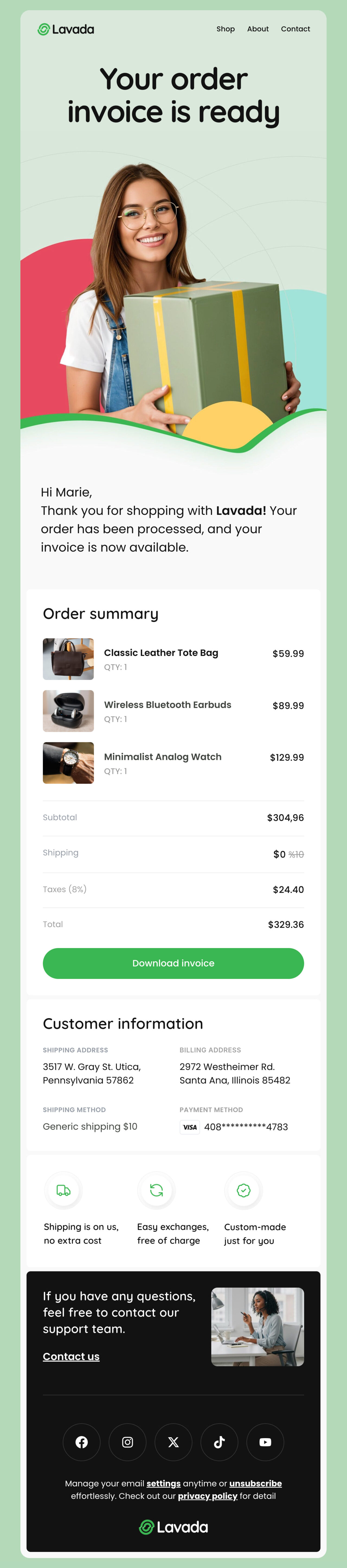
Designmodo has a wide variety of order confirmation email templates that you can use and customize depending on your needs, just like this one:
Edit This Email Template in Postcards
Password Reset Email Template
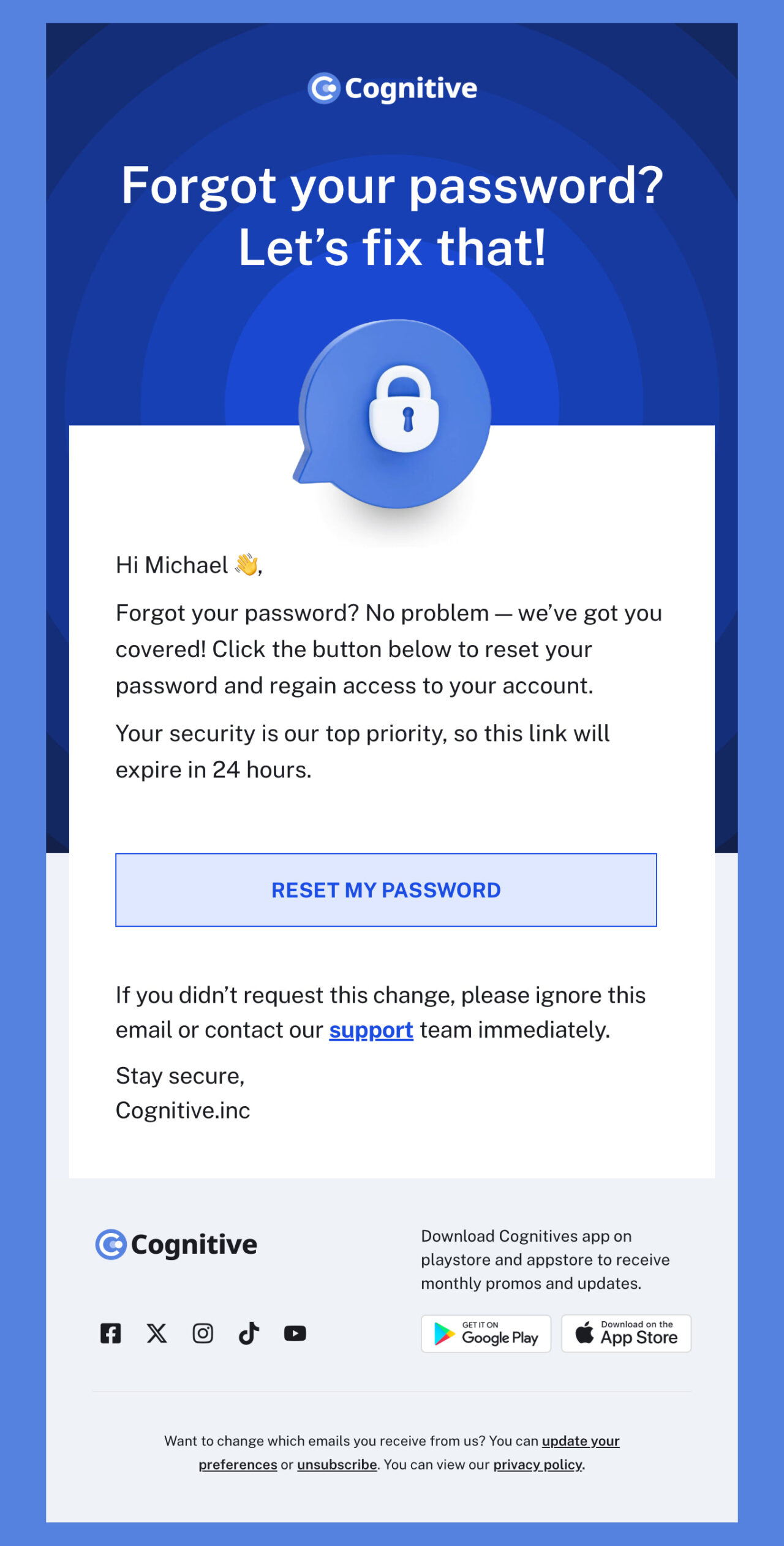
When someone requests a password reset, their primary concern is to regain access to their account. So, this is not the time for extra words; give them clear instructions, a secure link, and reassurance if they didn’t make the request.
Here’s a simple template you can use and adapt according to your style:
Subject Line: Reset your password
Hi [UserName],
We got a request to reset your password.
CTA: [Reset your password]
If this wasn’t you, ignore this email.
Here’s a ready-made design that you can customize:
Edit This Email Template in Postcards
Welcome Email Template
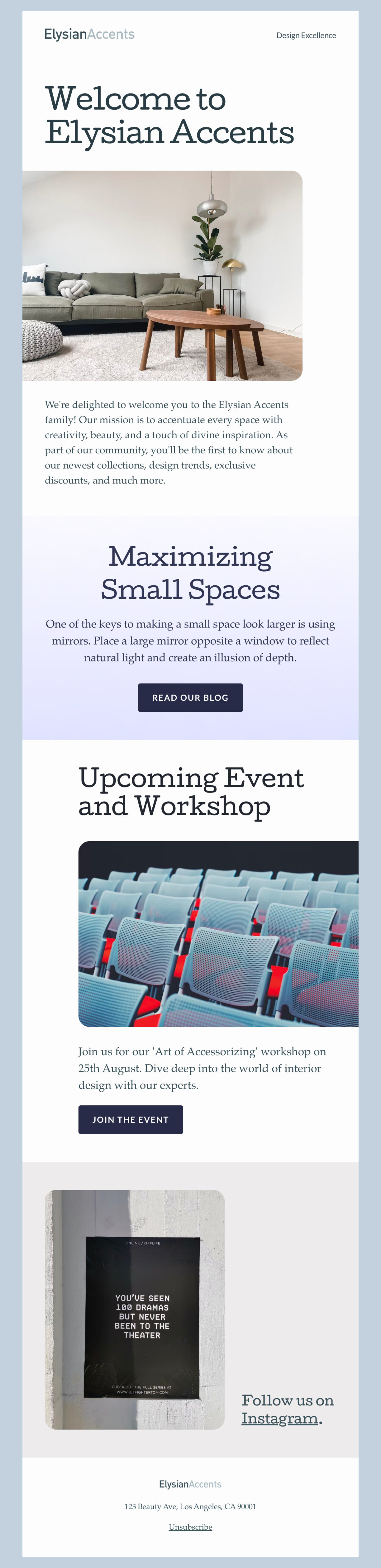
Since a welcome email is your chance to make a great first impression, you can use a similar template to greet your customers:
Subject Line: Welcome to [Your Company]!
Hi [Name],
We’re excited to have you here! Here’s the fastest way to get started with your account:
[Get started]
If you have any questions, we’re always here to help.
[Log in to your account]
Cheers,
The [Team Name]
Designmodo offers multiple welcome email templates for different industries. But here’s an example for furniture and interior design brands:
Best Practices for Writing Effective Notification Emails
Here are some tips to make your notification emails worth opening and acting on.
Keep Subject Lines Short and Clear
Your subject line is the first thing people see. That’s why 47% of recipients open an email just by reading its subject line. So, keep it short and make it obvious what the email is about. Two to four words is usually the sweet spot. For example:
- Reset your password
- Your invoice is ready
- Confirm your order
If you can, make it personal too.
To do so, you can add their name. This can make it feel like it’s written just for them and can bump open rates by 26%.
Something like: James, your report is ready.
Stick To One Message Per Email
One email = one purpose.
- If you’re confirming an order, confirm the order.
- If you’re sending a password reset, send the reset.
But if you mix messages, it would be confusing and could even cause people to overlook important details.
For example:
Subject Line: Your password was changed + 20% off your next order
Hi Alex,
We’ve updated your password as requested. If this wasn’t you, let us know.
Also, avail 20% off your next order!
This doesn’t work because the security update is urgent, but the promo may distract readers from it. So, keep your focus clear. This way, nothing important would get buried.
Add a Clear CTA
Every notification email should tell the reader exactly what to do next. Whether that’s “Track your order,” “Reset your password,” or “Log in now,” make it clear and easy to spot.
Here are some basic tips to ace your CTAs:
- Use one main button
- Place it where it’s obvious
- Use direct language so there’s no guessing about what happens when viewers click.
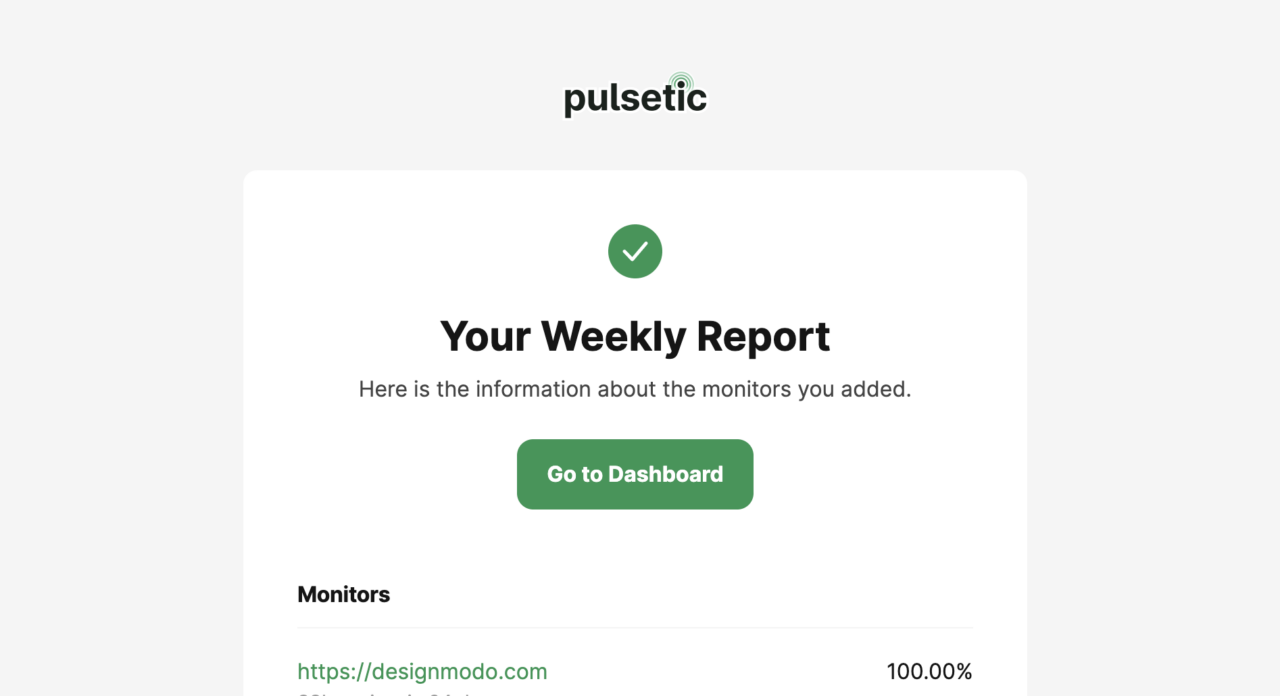
Every notification email should have an unsubscribe button.
Why?
Because it’s a simple way to respect user choice, and it’s a legal requirement too (in many regions). Rules like GDPR and CAN-SPAM make it clear: every email must include a visible way to opt out.
That’s why, since 2024, Gmail and Yahoo have made this policy even stricter. If you send a lot of emails, you now have to support one-click unsubscribe, so people can opt out instantly without leaving their inbox.
Make Emails Mobile-Friendly
Most people check email on their phones, around 64% of them. If your email doesn’t look good on a small screen, there’s a good chance it’ll get deleted within seconds.
So, here are some tips to keep it simple and clear on small screens too:
- Use a single-column layout
- Keep paragraphs short
- Make buttons big enough to tap easily
- Leave plenty of white space so it’s easy to read without zooming in
Keep Your Branding Consistent
Your notification emails should feel like they’re coming from the same brand your customers see on your website or app.
Same logo, colors, fonts, and tone of voice.
This consistency builds trust.
In fact, strong, consistent branding may boost your revenue. So even small details, like the way your buttons look or how you greet someone, matter more than you think.
Make Your Next Notification Emails Flawless
Don’t wait until a delayed email confuses your customers.
Start small: choose one type of notification email, like a password reset or an order confirmation (whichever is necessary), and make sure it’s clear and easy to read on any device.
Once that’s done, set up automated testing so every message lands in inboxes right on time.
And if you’re ready to get started, you don’t have to do everything from scratch. Choose one of our ready-made Designmodo email templates and make it yours.
FAQs
How Do I Prevent My Notification Emails From Going to Spam?
To prevent your emails from being flagged as spam, you need to use a verified sending domain (SPF and DKIM). Other than this, avoid spam-trigger words, keep HTML clean, include an unsubscribe link, and maintain a good sender reputation.
Can Notification Emails Be Integrated With Other Channels?
Yes. Many businesses use an omnichannel approach by combining email with SMS, push notifications, or collaboration tools like Slack or Microsoft Teams. This way, important updates reach users quickly, no matter where they are.
Can I Add Attachments to Notification Emails?
It’s better to avoid them. Spam filters often block emails with attachments because they may carry viruses.