How to Generate Email Templates Using AI (+ 8 AI Tool Recommendations)
To generate email templates with AI, describe the email’s purpose, audience, and tone either in a prompt or through a brand kit and guided form. The tool creates a draft, which you should review and edit before sending it to subscribers.
In this guide, I’ll show you how to create an email template in six steps, and which tools are best depending on how much of the job you want AI to handle.
Why Use AI to Generate Email Templates
AI saves time by handling copy, layout, and brand matching in one prompt instead of three separate steps. That’s a major reason why 44% of small businesses now use AI to write email content.
For example, a marketer sending a promo email can describe the offer, audience, and tone in one prompt and get a formatted subject line, body copy, and CTA back instead of writing copy in one doc and building layout in another tool.
How to Generate Email Templates Using AI (Step by Step)
To generate email templates using AI:
- Define the purpose and audience
- Write a detailed prompt
- Apply brand guidelines
- Generate and review the draft
- Edit for voice and compliance
- Test, personalize, and save the template for reuse
Let’s understand these six steps in detail.
With Postcards Email Builder, you can create and edit email templates online without any coding skills! It includes more than 100 components and the AI Suite, which builds and translates full templates from a single prompt.
Free Email BuilderFree Email TemplatesStep 1: Define the Email’s Purpose and Audience
Before you open any tool, know what you’re sending and to whom. A welcome email for new signups needs a different structure than a Black Friday promo or a cold outreach note, and no AI tool can guess that for you.
Write one sentence: what kind of email this is, who’s receiving it, and what you want them to do after reading it. That sentence becomes the backbone of your prompt in Step 2; skip it, and you’ll end up rewriting the draft from scratch.
Step 2: Write a Detailed Prompt
A strong AI email prompt includes five things:
- Goal
- Tone
- Key selling points
- Call to action
- Target length
A prompt built from these five information points gives the AI something to actually work with. If you give vague prompts, it produces vague results. For example, “Write a promotional email” produces generic copy that could belong to any brand.
Here’s a prompt you can adapt for most promotional sends:
“Write a promotional email for [brand name]. The offer is [describe offer]. The audience is [describe audience — e.g., returning customers who haven’t purchased in 60 days].
Tone: [warm/urgent/professional]. Include a bold headline, 2-3 sentences of body copy, and one clear CTA button that says [CTA text]. Keep the whole email under 150 words.”
Swap the brackets for your actual details and run it. As a result, you’ll get a usable first draft instead of a blank page.
With Pulsetic you’ll be instantly notified the moment your website, API, or server becomes unavailable. Monitor uptime from multiple global locations and respond to incidents before your users are affected.
Create beautiful status pages in minutes to keep customers informed during outages and build trust with transparent communication.
Start Monitoring for FreeStep 3: Apply Brand Guidelines
Most AI email tools let you upload a brand kit (colors, fonts, logo), and some, like the Postcards AI suite, let you save a brand preset so every future prompt pulls from it automatically.
Skip this step, and you’ll be rewriting the email instead of making small edits. Readers recognize a brand through consistent colors and style, and an off-brand email breaks that pattern.
Step 4: Generate and Review the Draft
Run the prompt, then read the draft carefully. AI is usually good at structure so it may produce the header, body, and CTA in the right order. However, it’s not as good with facts; it doesn’t know your product better than a search engine does.
Check three things:
- Does the subject line make people want to open it
- Is the CTA clear instead of a generic “click here”
- Does any line sound like it could come from any brand
Also watch for made-up details like a discount percent, a shipping time, a product name, that sound real but aren’t. Catch those before they become a promise you have to keep.
Step 5: Edit for Voice, Compliance, and Rendering
Check three things before you send:
- Does it sound like you?
- Does it have the right legal text?
- Does it look right in every email app?
Most people skip this step. However, it’s the one that prevents real problems.
Read the draft out loud and rewrite anything that doesn’t sound like you. Add legal text yourself, including the unsubscribe links and required disclosures, since AI won’t know your industry’s rules unless you tell it.
Then send yourself a test email in Gmail, Outlook, and on your phone. This is important because an email that looks perfect in the builder and Gmail may look improper in Outlook or on mobile phones.
Step 6: Test, Personalize, and Save as a Reusable Template
Once the draft is ready:
- A/B test the subject line or CTA on your next send.
- Add merge fields so the greeting and offer change per person.
- Save the finished email to a template library instead of starting over next month.
Your first AI email might take 20 minutes from prompt to send. But once you get the first one right, the fifth one would probably take less than 10 minutes, built from a saved template.
Best AI Tools to Generate Email Templates
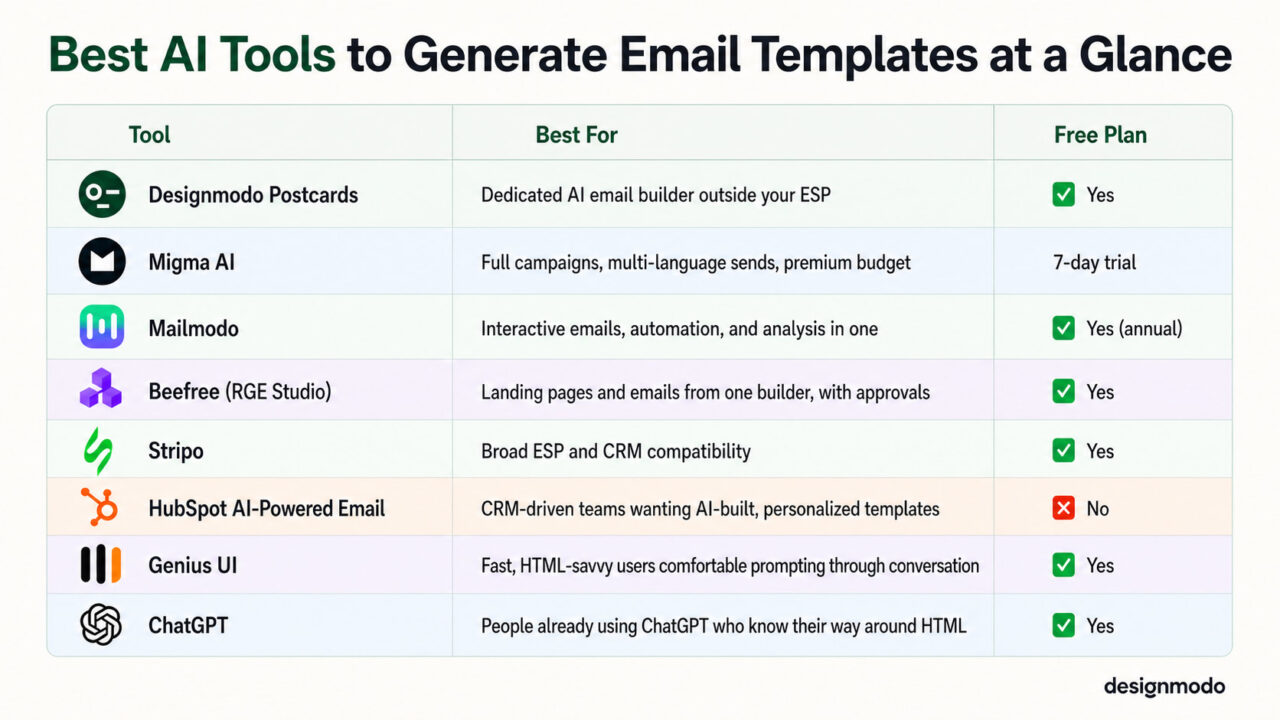
Here are the top eight AI tools you can use to generate email templates.
1. Postcards by Designmodo
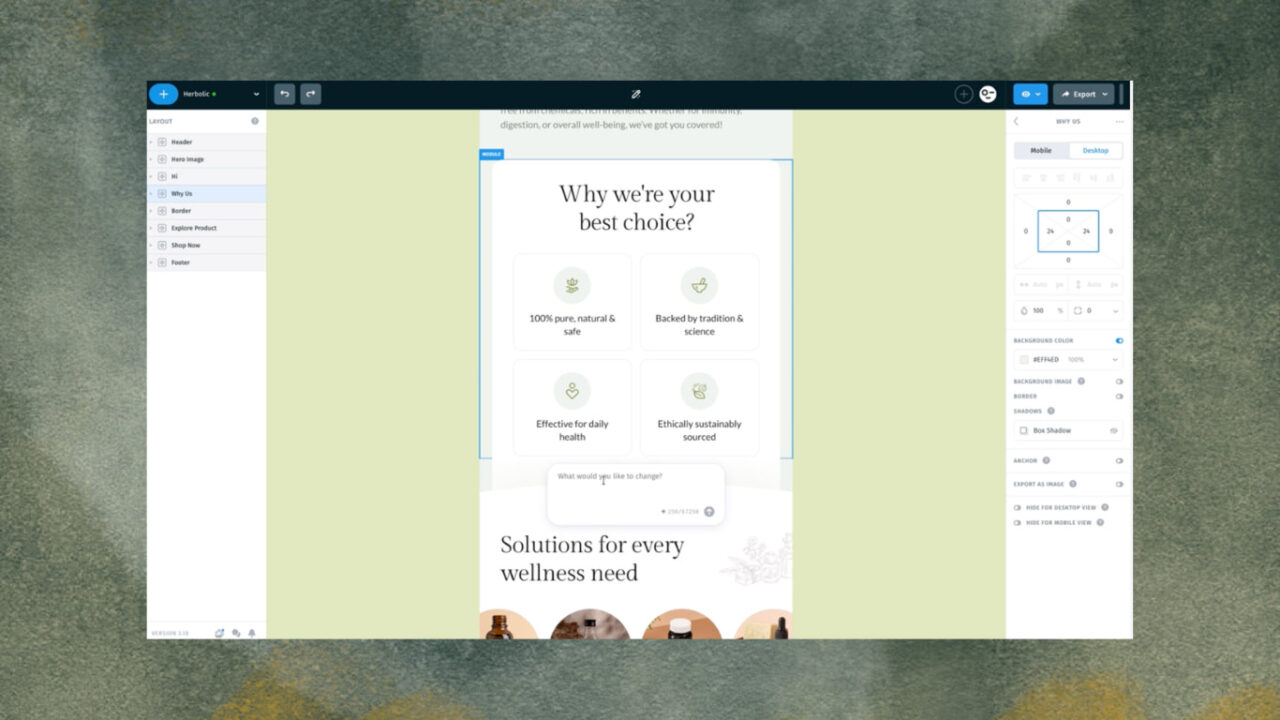
Postcards builds the template and the copy together. Tell it what email you want, and its AI Suite gives you the layout, the copy, and clean HTML, all ready to edit in the same builder you’d use to make one manually.
Postcards include:
- AI creation: Turns a plain-language prompt into a full template including layout, copy, and clean HTML, built around your brand assets.
- AI editing and transformation: Restyle, restructure, translate, or rewrite the whole template through one follow-up prompt.
- AI design analysis: Runs a design audit that flags contrast, alignment, consistency, and copyright issues before export.
- AI subject line generator: A quick, free way to test a few subject lines without overthinking it.
- HTML import: Bring an existing HTML email in, from an old campaign or a competitor’s send, and keep editing it in the same builder.
- Figma import: Design in Figma, then use the Postcards plugin to convert it straight into responsive, production-ready HTML, no coding required.
Best for: Marketers and designers who want a dedicated AI email builder outside their ESP.
Pricing
Postcards’ pricing breaks into three plans, billed monthly:
- Free plan: The full drag-and-drop builder, 10 projects, 5 exports a month, unlimited teammates.
- Plus plan ($19/month): 5,000 AI credits a month, unlimited projects, and 5 daily exports (reset every day).
- Pro plan ($29/month): 10,000 AI credits a month, plus SSO and CDN hosting for teams.
2. Migma AI
Migma AI treats the email as one piece of a bigger job. Describe a campaign in plain language, and it builds the emails, the automation flow, the audience segment, and the send schedule together, all from one prompt.
With Migma, you can:
- Remix real brand emails: Browse real sends from brands like Versace and The North Face, then remix any one into your own on-brand version.
- Import from anywhere: Bring in a Figma frame, a screenshot, existing HTML, or a Claude design, and Migma turns it into a working email.
- Track a competitor: Follow a competitor’s newsletters and compare how often they send against your own.
Best for: Teams that want a full campaign generated from one prompt, especially ones sending to audiences in multiple languages since Migma localizes automatically.
Pricing
Migma runs on a 7-day free trial; billing starts automatically once the trial ends. From there, pricing has three monthly tiers:
- Premium ($99.99/month): 100 AI emails a day, 200K emails/month sending, AI image and GIF generation, export to multiple platforms, 5 brand kits, and Figma design import.
- Business ($299/month): Unlimited AI emails, AI images and GIFs, and brand kits. Real-time team collaboration. Includes 2 seats, with extra seats at $99 each.
- Enterprise (custom pricing): Everything in Business, plus flexible AI message limits, custom sending limits, SOC 2, GDPR, and ISO 27001 compliance, single sign-on, onboarding services, and priority support.
3. Mailmodo
Mailmodo builds the campaign and sends it from the same place. Describe what you want, and it generates the strategy, the template, and the automation flow together, ready to launch in minutes instead of days.
With Mailmodo, you can:
- Add interactive elements: Drop a poll, quiz, spin-the-wheel game, or star rating straight into the email, so people can respond without leaving their inbox.
- Build the whole automation flow: One prompt sets up the segment, the email sequence, and the send schedule.
- Analyze performance automatically: The AI Campaign Analyzer reviews each send and suggests what to improve on the next one.
Best for: Marketers who want the whole loop, interactive emails, automation, and performance analysis, handled inside one platform instead of juggling separate tools.
Pricing
It has three tiers, shown here at a 500-contact list; cost rises as your list grows. But annual billing saves 20% versus paying monthly.
- Lite (Free. $27/ billed annually): 2,000 email sending credits, 1 team member, 1 active automation journey, basic integrations, chat and email support.
- Pro ($99/month): 3,000 email sending credits, 3 team members, 10 active journeys, all integrations, A/B testing, send-time optimization, and no Mailmodo branding on templates.
- Max (custom pricing): Unlimited sending credits, 5 team members, unlimited active journeys, up to 100K contacts per journey, and dedicated chat, email, and call support.
4. Beefree (RGE Studio)
Beefree, rebranded to RGE Studio in 2026, builds emails and landing pages in the same tool. You can even turn an email into a landing page, or a landing page into an email, with a single click, something none of the other tools on this list do.
Other than that, you can:
- Multilingual support scales from one extra language on Professional up to 24 additional languages on Enterprise.
- Get AI help to write alt text with AI, and generate images with AI.
- Bring a Canva design in without exporting and re-uploading it.
- Run real approval workflows. More than one person can review a draft before it goes out.
Best for: Teams and agencies that need landing pages and emails from the same builder, with real approval workflows.
Pricing
The pricing has four tiers:
- Starter: Up to 10 designs, 6 exports a month, the landing page builder, and a custom subdomain.
- Professional ($30/month): Unlimited project folders and reusable content, a second seat, and the AI writing assistant.
- Business ($160/month): Advanced brand controls, 2 segmented workspaces, built-in approval workflows, a dedicated customer success manager, and a built-in QA assistant.
- Enterprise (custom pricing): Multi-stage approval workflows, advanced user restrictions, and a dedicated customer success manager.
5. Stripo
Stripo exports to more than 90 ESPs and email clients, more than any other tool on this list. Over 1.7 million people use it, including teams at Maersk, Adobe, and Spotify.
With Stripo, you can:
- Describe the email you want- a promo, a digest, a webinar invite- and the AI assistant returns headers, body text, and CTAs you can drop straight into a project.
- The same AI assistant also plans scheduling and topics across a campaign.
- Translate the whole email. Auto-translate with Google inside the editor, or add your own translations, then export every language version together.
- Co-edit in real time. More than one person can work on the same email at once.
Best for: Teams that need one template to export cleanly to almost any ESP or CRM, with collaboration with multiple team members.
Pricing
Stripo’s monthly pricing plan includes:
- Free plan: 10 stored emails and templates.
- Basic plan ($20/month): 2 users, 50 exports, 3 projects, and 50 stored premium email templates.
- Medium plan ($45/month): 3 users, 300 exports, 5 projects, and 300 stored premium email templates.
- Pro plan ($125/month): 10 users, 4,000 exports, and 5000 stored premium email templates.
6. HubSpot AI-Powered Email
HubSpot’s free AI Email Writer only writes text like a subject line, body copy, and a CTA. You paste it in yourself or drop it into a template that already exists.
The tool that actually builds the template is separate and costs extra. It’s called AI-Powered Email. Describe the email you want, and it gives you the layout, subject line, copy, and images together.
With AI-Powered Email, you can:
- Personalize emails. Each email changes based on who’s getting it. It pulls details like industry or company size from your CRM.
- Let AI choose the send time. It guesses which contacts will open the email and selects the best time to send to each person.
- Get a summary after you send. Instead of going through a spreadsheet, you get a short write-up of what worked and what to try next time.
Best for: Marketing teams already using HubSpot CRM data for campaigns, who want AI to build the template and personalize it per person.
Pricing
There are four pricing plans but AI-Powered Email only comes with the Professional and Enterprise.
- Professional ($890/month, 3 seats included): Has AI-Powered Email, with automation, A/B testing, and custom reports. There’s a $3,000 setup fee, and some AI features cost extra credits on top.
- Enterprise ($3,600/month, 5 seats included): Has AI-Powered Email and gives access to more advanced permissions. But it requires a $7,000 setup fee.
7. Genius UI
Genius UI is an AI UI generator behind DesignFast, and email templates are one of several outputs it makes, alongside landing pages, dashboards, resumes, and forms. It can generate real HTML, tested against Gmail, Outlook, and Apple Mail.
With this tool, you can:
- Describe the email and get real HTML back: Table-based layout, inline styles, and email-safe code.
- Refine it by instructing: Change something like “make the CTA button more prominent and centered,” and it updates the existing template instead of starting over.
- Edit visually without spending credits: Design Mode lets you click any element to adjust text, color, or spacing manually, so small tweaks don’t use up AI generations.
- Generate a whole email sequence at once: Ask for a three-email sequence like an announcement, a benefits deep-dive, and an urgency reminder, and get all three together.
Best for: Someone who’s comfortable working with HTML and can communicate with an AI effectively to get the best possible results.
Pricing
Genius AI has three pricing plans:
- Free: 3 credits, 2000×2000 image resolution, and community support.
- Starter ($19/month): 100 credits, 4000×4000 image resolution, enhanced image analysis with deep thinking, priority support, and access.
- Pro (starts at $49/month): 300 credits to start, with a slider that scales credits up to 2000+ at a higher price, 8000×8000 image resolution, enhanced image analysis with deep thinking, with priority support and access.
8. ChatGPT
ChatGPT is a general AI chatbot, but you can use it to generate an email template. To do so, prompt the AI; it gives the source code, and you preview the result.
Since GPT is going to give you the HTML code, follow these steps to preview how the design renders visually:
- Copy the HTML block from the response.
- Open a text editor (like Notepad or TextEdit) and paste the code.
- Save the file as “email.html” on your desktop.
- Double-click the file to open and preview it in any web browser (Chrome, Safari, Edge).
Alternatively, you can copy the code directly into an online tool like HTML Code Runner or CodePen to see the live rendering immediately.
Best for: People who already use ChatGPT and are familiar with HTML coding. It’s the least visual, least email-specific option on this list, but free to try and works well if you’re comfortable with a little technical back-and-forth.
Pricing
ChatGPT’s pricing plans aren’t email-specific, since generating a template is just one thing you can ask it to do. But its basic version is free, and that’s good enough to generate an email template for you.
Which AI Email Tool Should You Choose?
Match the tool to the job, not the other way around.
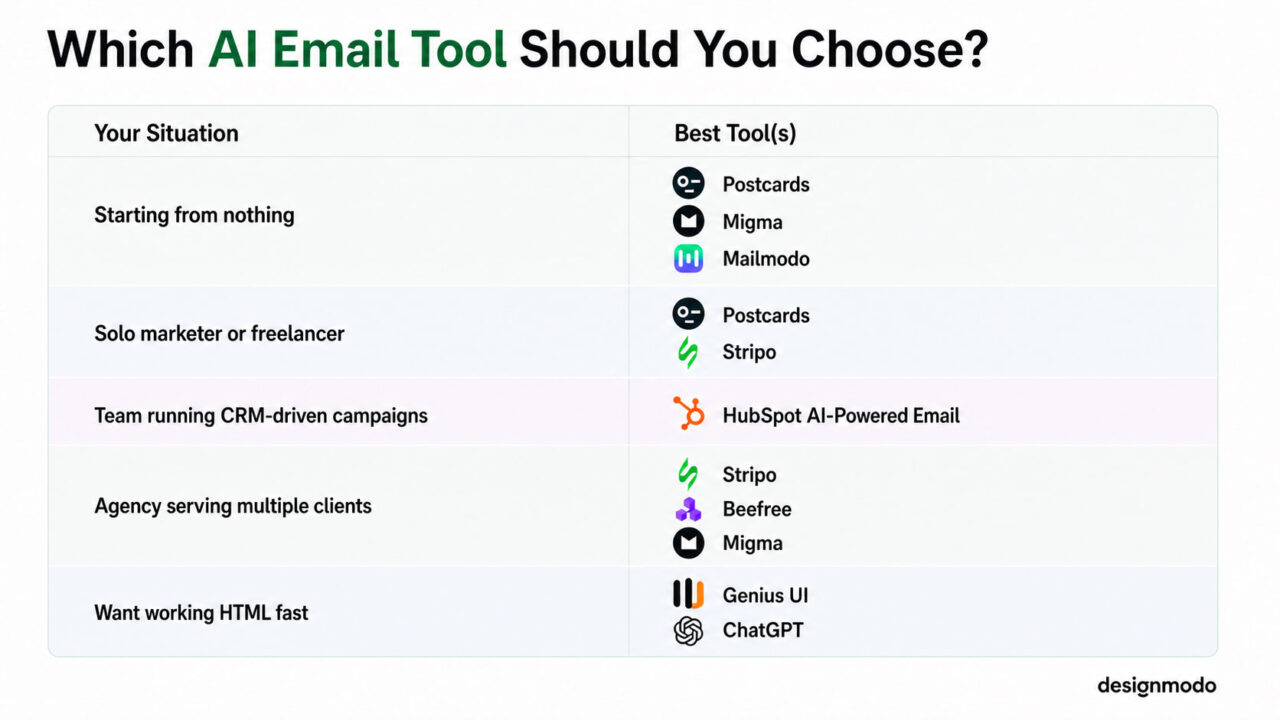
Starting From Nothing?
Choose a tool that builds layout and copy together, like Postcards, Migma, or Mailmodo, as they will save you from juggling two separate tools into one workflow.
Solo Marketer or Freelancer?
Use Postcards or Stripo. Both are fast, design-forward builders that work outside your ESP, so you’re not locked into one sending platform.
Team Already Running CRM-Driven Campaigns?
Use HubSpot’s AI-Powered Email. It personalizes each email from data you already have, like industry or company size, instead of working from a generic prompt.
Agency Producing On-Brand Email for Multiple Clients?
Look at Stripo, Beefree, or Migma as all three have strong brand-kit controls and team collaboration for managing more than one client’s voice at once.
Want Working HTML Fast?
Try Genius UI or ChatGPT. They’re not dedicated email tools, but you refine the HTML results through conversation.
Tips for Better AI-Generated Email Templates
When generating a decent email template using AI, make sure you follow these tips:
- Include the audience, tone, offer, and length in your prompt to make it detailed.
- Always read the draft yourself because AI can get facts wrong, miss your brand voice, or skip what your audience actually cares about.
- Save prompts that worked to reuse them with a few words changed.
- Rewrite any line that could belong to any brand to make it sound like yours.
- Check spam words, SPF/DKIM authentication, the unsubscribe link, and mobile view before you send.
Generate Email Templates Using Postcards AI Suite
Describe the email you want, and Postcards’ AI Suite hands back the layout, the copy, and clean HTML together — ready to edit in the same builder.
Start free today and see how close the first draft gets before you write a single line yourself.