How to Use AI for Emails: 10 Ways to Save Time on Campaigns
To use AI for emails, give an AI tool the key details (your goal, audience, and tone) and let it draft the email, then review the draft before you send it.
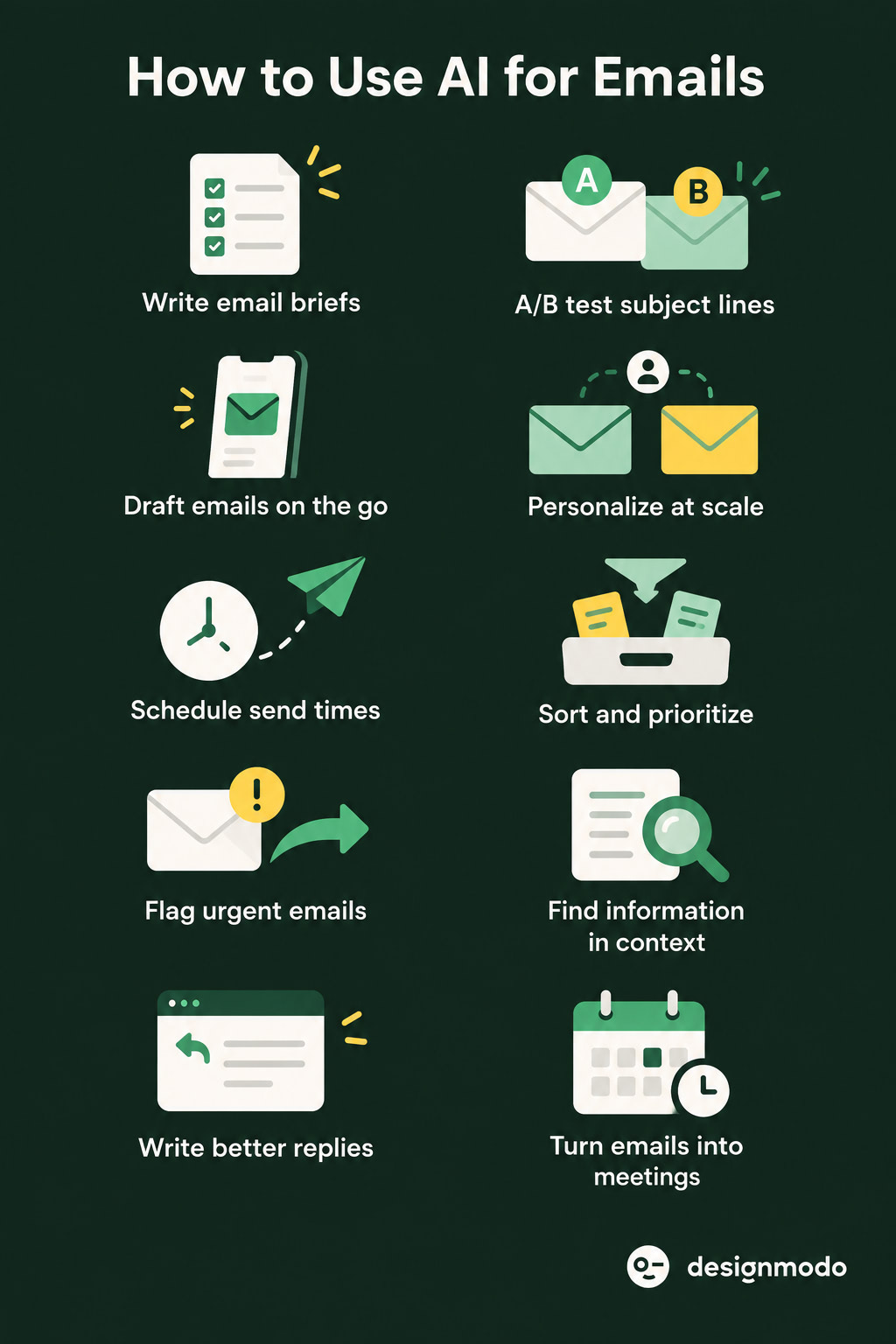
For campaigns, AI writes subject lines, builds and personalizes the email, and picks send times. In your inbox, it sorts messages, finds old threads, drafts replies, and schedules meetings.
In this guide, we explore 10 ways to use AI for email. You’ll also get ready-to-copy prompts and a quick check to run before you send.
What Are the Two Ways People Use AI for Email
You can use AI for marketing campaigns or for your daily inbox. These are different jobs, so they need different tools:
- Marketing campaigns go from one sender to many people. AI helps you write subject lines, build and personalize the email, and select send times. This is AI email marketing.
- Inbox email goes from one person to another: a client, a coworker, or a lead. AI sorts messages, finds old threads, and drafts replies. This is what an AI email assistant does.
A general chatbot like ChatGPT only knows what you type into the prompt. But an AI email design tool like Postcards’ AI Suite knows your brand and builds the finished email.
How to Use AI for Email Marketing Campaigns
Here’s how to use AI for your campaigns:
With Postcards Email Builder, you can create and edit email templates online without any coding skills! It includes more than 100 components and the AI Suite, which builds and translates full templates from a single prompt.
Free Email BuilderFree Email Templates1. Give AI Your Campaign Details First
AI writes a better campaign when you give it your offer, audience, and tone up front.
A vague prompt like “write me a promo email” gets a generic result. That isn’t the AI’s fault. The prompt gave it nothing to work with.
Try this instead:
“Write a promotional email for a 20% off sale on running shoes, ending Sunday. Audience: customers who bought running gear in the last 6 months. Tone: energetic, not pushy. Use this old campaign as a style example: (paste it). Keep it under 150 words with one clear call to action.”
If you have an old campaign that performed well, paste it in so AI can match its style. In Postcards’ AI Suite, the same prompt builds the whole email, with the layout and copy together.
2. Generate and Test Subject Lines
To generate subject lines with AI, give it your offer, deadline, and preferred style, and ask for several options at once. To test them, select your best two or three and run an A/B test in your ESP, so open rates decide the winner instead of your guess.
For example, try this prompt:
“Give me 5 subject lines for a 20% off running shoe sale, ending Sunday. Mix urgency and curiosity. Keep each one under 50 characters.”
With Pulsetic you’ll be instantly notified the moment your website, API, or server becomes unavailable. Monitor uptime from multiple global locations and respond to incidents before your users are affected.
Create beautiful status pages in minutes to keep customers informed during outages and build trust with transparent communication.
Start Monitoring for FreeYou might get:
- “20% off running shoes ends Sunday”
- “Your feet will thank you (20% off, this weekend only)”
- “Last call: running shoes at 20% off”
You can use Designmodo’s AI Subject Line Tester before you load them into your A/B test.
3. Write and Design the Email Body
Tell AI exactly what goes in the email, section by section. If you only describe the offer, you get a generic block of text. If you describe the structure, you get an email that’s ready to design.
Include these in your prompt:
- Sections, in order: for example, a hero with a headline, three product blocks, a customer quote, and a footer.
One job per section: what each part should say or show, such as “the hero announces the discount” or “the product blocks show bestsellers with prices.” - One call to action: the button text and where it leads, like “Shop the sale” linking to your sale page.
- Length: a word limit, so the copy doesn’t bury the button.
- Design direction: colors, mood, or a layout to follow, such as “bold and sporty, two-column product grid, mobile-friendly.”
Here’s how that looks as a prompt:
“Build a promo email for our 20% off running shoe sale, ending Sunday. Start with a hero section: a short, energetic headline and a ‘Shop the sale’ button. Follow with three product blocks showing our bestselling shoes with prices, then one short customer review. Keep the copy under 150 words. Use a bold, sporty style with a two-column product grid that works on mobile.”
A chatbot will give you only the copy for this. However, an email design tool like Postcards’ AI Suite builds the full email from the same prompt, with your logo, colors, and fonts already applied. Then you can refine it by re-prompting.
💡 Tip: Always read the draft before it goes out. AI sounds just as confident when it gets a date or discount wrong.
Ask AI to change what each subscriber sees based on who they are and what they’ve done, so it feels like you wrote the email specifically for them. You can do this in two ways:
1. Add names and details with merge tags: Tell AI which fields to use, where to put them, and your ESP’s tag format, because every platform writes tags differently. Mailchimp uses *|FNAME|*, for example, and Klaviyo uses {{ first_name }}. Always ask for a fallback so no one gets an email that opens with just “Hi”.
“Add a first-name merge tag to the greeting and the headline, using Mailchimp’s format. If the name is missing, use ‘there’ instead.”
In Postcards’ AI Suite, one prompt like this adds the tags across the whole email.
2. Change whole sections for different groups: Build your segments in your ESP, such as “bought running shoes” and “bought yoga gear.” Ask AI to write a version of the product section for each group:
“Write two versions of the product section. Version A is for customers who bought running shoes: show new running gear.
Version B is for customers who bought yoga mats: show yoga gear. Keep the same length and tone in both.”
Then, add both versions to your ESP as dynamic content, so each subscriber sees the version that matches their purchase history.
Note: AI writes the versions, but it can’t sort your subscribers. That part needs the purchase and click data stored in your ESP.
5. Send at the Best Time
Turn on your ESP’s send-time optimization and let it choose when each email goes out. The feature looks at when your subscribers opened and clicked past emails, then delivers your campaign at the time they’re most likely to read it.
You won’t find this feature in a design tool or a chatbot, because it needs your subscribers’ live engagement data.
ESPs use one of two methods:
- One best time for your whole list: Klaviyo’s Smart Send Time works this way, but it needs at least 12,000 active profiles.
- A separate time for each subscriber: MailerLite’s Smart sending (on paid plans) and Klaviyo’s Personalized Send Time work this way. You set a delivery window, and the ESP sends to each person within it.
Keep the feature off for flash sales or offers with a hard deadline. Personal send times spread delivery over several hours, so some subscribers may get the email too late to act.
After the campaign goes out, check your report. Note which subject line won, which segment clicked most, and when people opened. Then add those results to your next campaign brief in step 1, so each campaign performs a little better than the last.
How to Use AI for Your Daily Inbox
Connect an AI email assistant to your inbox, or use the one already built into it, like Gemini in Gmail or Copilot in Outlook. It reads your messages, so it can sort them, find old threads, draft replies, and set up meetings for you.
Here’s how to use each feature.
1. Sort Your Inbox
Tell AI which emails are important, and it moves everything else out of the way. Unlike old inbox rules, which only check the sender’s name or address, AI reads the content. It can tell a receipt from a newsletter, and a newsletter from a client who needs an answer today.
Most built-in assistants sort your mail as soon as you turn them on. Gmail’s new AI Inbox view, for example, pulls your to-dos to the top and filters out the clutter. For better results, spell out your priorities:
“Flag any email from a client that mentions a deadline, an invoice, or a problem. Move newsletters and promotions out of my main inbox.”
2. Route Urgent Emails to the Right Person
If your team shares one inbox, like support@ or sales@, AI can read each message and send it to the right person before anyone opens it.
Describe your routing rules in plain language, the same way you’d brief a new teammate:
“Send billing questions to finance. Send angry or cancellation emails to the account manager and mark them urgent. Any other question can go to whoever is free.”
Keyword rules only spot words like “invoice” or “urgent.” But AI understands intent, so it can tell a frustrated client from a routine question, even when neither email uses the word “urgent.”
3. Find Past Context Before You Reply
Ask AI to search your email history before you write back. Type your question the way you’d ask a colleague:
- “Have I emailed this person before?”
- “Find the thread where we agreed on pricing with Acme.”
- “What did Sarah say about the launch date last month?”
In Gmail, you can ask your inbox questions like these directly and get a short answer with the source emails. Use what it finds in your reply, so you don’t repeat a question or contradict something you said three months ago.
4. Draft Replies
Give AI four things:
- the purpose of the reply
- who you’re writing to
- the tone
- the facts it must get right
Write something like:
“Reply to Sarah, a long-time client. She asked to move our call. Tell her Thursday at 3 PM works, and ask her to send the updated brief before then. Keep it friendly and under 80 words.”
In Gmail, Help Me Write and Suggested Replies do this inside the email you’re answering, and they learn your writing style over time. Read the draft, adjust anything that doesn’t sound like you, and then send it.
5. Schedule Meetings
Let AI read the scheduling request, check your calendar, and offer times you’re actually free. In Gmail, Gemini’s “Help me schedule”spots lines like “Does Thursday work?” and suggests open slots from your calendar.
This cuts the usual five-email back-and-forth down to one reply. It’s a small saving, but it adds up if you book meetings every week.
Ready-to-Copy AI Email Prompts
Paste these prompts into ChatGPT, Claude, Gemini, or your inbox’s built-in assistant, then fill in the brackets.
- Professional email: “Write a professional email to (recipient) about (topic). Keep it under 150 words, clear and direct, no fluff.”
- Follow-up: “Write a polite follow-up to an email I sent (recipient) on (date) about (topic) that hasn’t gotten a reply yet.”
- Cold outreach: “Write a short cold email introducing (what you do) to (recipient/role), with one specific reason this is relevant to them and a low-pressure task.”
- Client update: “Write a status update email for (client) covering (progress/milestones), what’s next, and any blockers, in a reassuring but honest tone.”
- Meeting request: “Write an email requesting a 30-minute meeting with (recipient) about (topic), with two or three time options.”
- Apology: “Write a short apology email for (what went wrong). Acknowledge the impact without over-explaining, and say what happens next.”
- Sales email: “Write a sales email for (product/service) targeted at (audience), focused on (one specific benefit), with a clear next step.”
- Shorten a draft: “Shorten this email by half without losing the key points: (paste draft).”
- Change the tone: “Rewrite this email to sound more (formal/friendly), keeping the same information: (paste draft).”
- Fix grammar: “Fix the grammar and clarity of this email without changing its meaning or tone: (paste draft).”
What Mistakes to Avoid When Using AI for Email
Most AI email mistakes come from vague prompts or careless sharing. Watch for these four:
- Giving too little detail: A thin prompt gets a thin draft. Add the purpose, the audience, and the key facts.
- Using one voice for everyone: An email to your boss shouldn’t read like one to a friend. Tell AI who you’re writing to.
- Faking personalization: A first name dropped into a generic template reads worse than no name at all. So personalize the whole content.
- Pasting private information into a chatbot: If you wouldn’t post it publicly, don’t paste it into a tool outside your company’s systems. Check your company’s rules first.
What to Check Before You Send an AI-Written Email
Check accuracy, links, and voice:
Accuracy: Check every name, date, number, and product detail. AI sounds quite confident even when it’s wrong.
Links: Click each one to make sure it goes to the right page.
Voice: Read the email out loud. If it sounds like a template, edit it until it sounds like you.
Which AI Tool Should You Use for Email?
The right tool depends on what you need to do. A general chatbot works for quick drafts, but for campaigns and a busy inbox, a tool built for that task saves more time.
- To write a quick draft, use a general chatbot such as ChatGPT, Claude, or Gemini. It needs no setup, but it only knows what you type into the prompt.
- To build a campaign email, use an email design tool like Postcards’ AI Suite. It creates the layout, copy, and merge tags from one prompt and applies your brand colors and fonts.
- To target, test, and time your campaigns, use your ESP, such as Klaviyo, Mailchimp, or MailerLite. It holds your subscriber data, so only it can build segments, run A/B tests, and choose send times.
- To manage your inbox, use the AI assistant built into your email app, such as Gemini in Gmail or Copilot in Outlook. It sorts messages, finds old threads, and drafts replies.
Build Your Next Campaign With Postcards’ AI Suite
Postcards’ AI Suite builds a full email from one prompt, including the layout, copy, and brand styling. You can then refine it by chat. For example, you can add product blocks, translate the email, or create a shorter version for an A/B test.
When the email is ready, preview it in Gmail, Outlook, Apple Mail, and Yahoo. Then export clean HTML to your ESP in one click. AI Suite is included on every paid Postcards plan.
Sending from Gmail instead? The Postcards Chrome extension inserts your template in one click. If you’d rather do it manually, check our guide on how to upload a template to Gmail manually.
FAQs
How can I use AI to enhance my emails?
Use AI for the slow parts of email: subject line ideas, first drafts, tone rewrites, and personalization. Then edit the draft yourself. AI makes you faster, and your review keeps each email accurate and on-brand.
Can AI write an entire marketing email?
Yes, a tool like Postcards’ AI Suite builds a complete email from one prompt, including the layout, copy, and brand styling. You still need to check the offer details and links before you send it.
Can AI summarize long email threads?
Yes, Gmail summarizes long threads for free, and you can also paste any thread into ChatGPT, Claude, or Gemini and ask for a summary. Ask for the decisions, open questions, and action items, so the summary tells you what to do next, not just what people said.
Is it safe to use AI for email?
Yes, as long as you keep private data out of public chatbots. Built-in assistants like Gemini in Gmail work inside your account, and Google says it doesn’t use your email content to train its AI models. For client or confidential information, check your company’s AI policy first.
What’s the best free AI tool for email?
For your inbox, start with Gemini in Gmail. Help Me Write and Suggested Replies are free for all Gmail users. For campaign copy, a free chatbot like ChatGPT or Claude works well.